> ## Documentation Index
> Fetch the complete documentation index at: https://docs-test.rye.com/docs/llms.txt
> Use this file to discover all available pages before exploring further.
# Add Payment Method
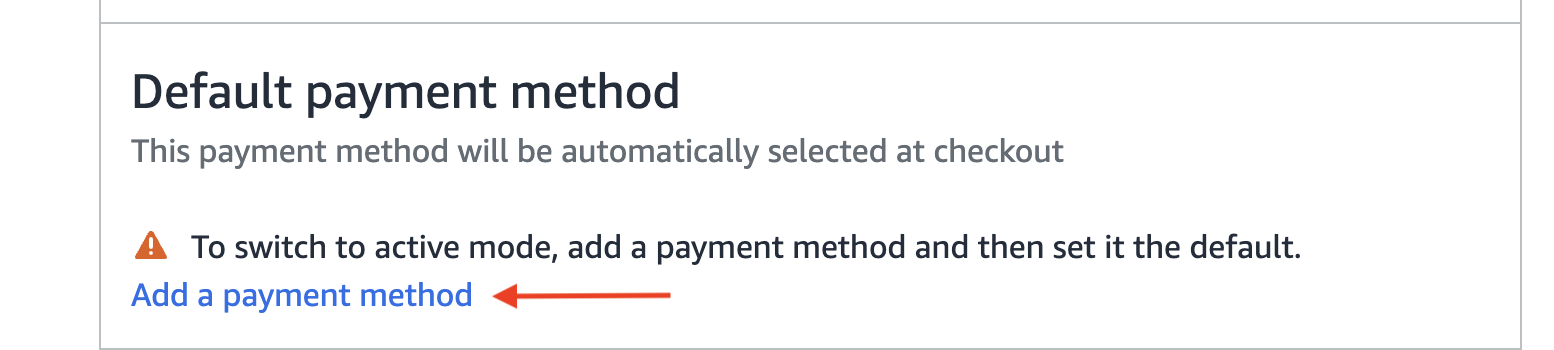
1. Next, add a payment method for the group by clicking on `Add a payment method` under `Default payment method`
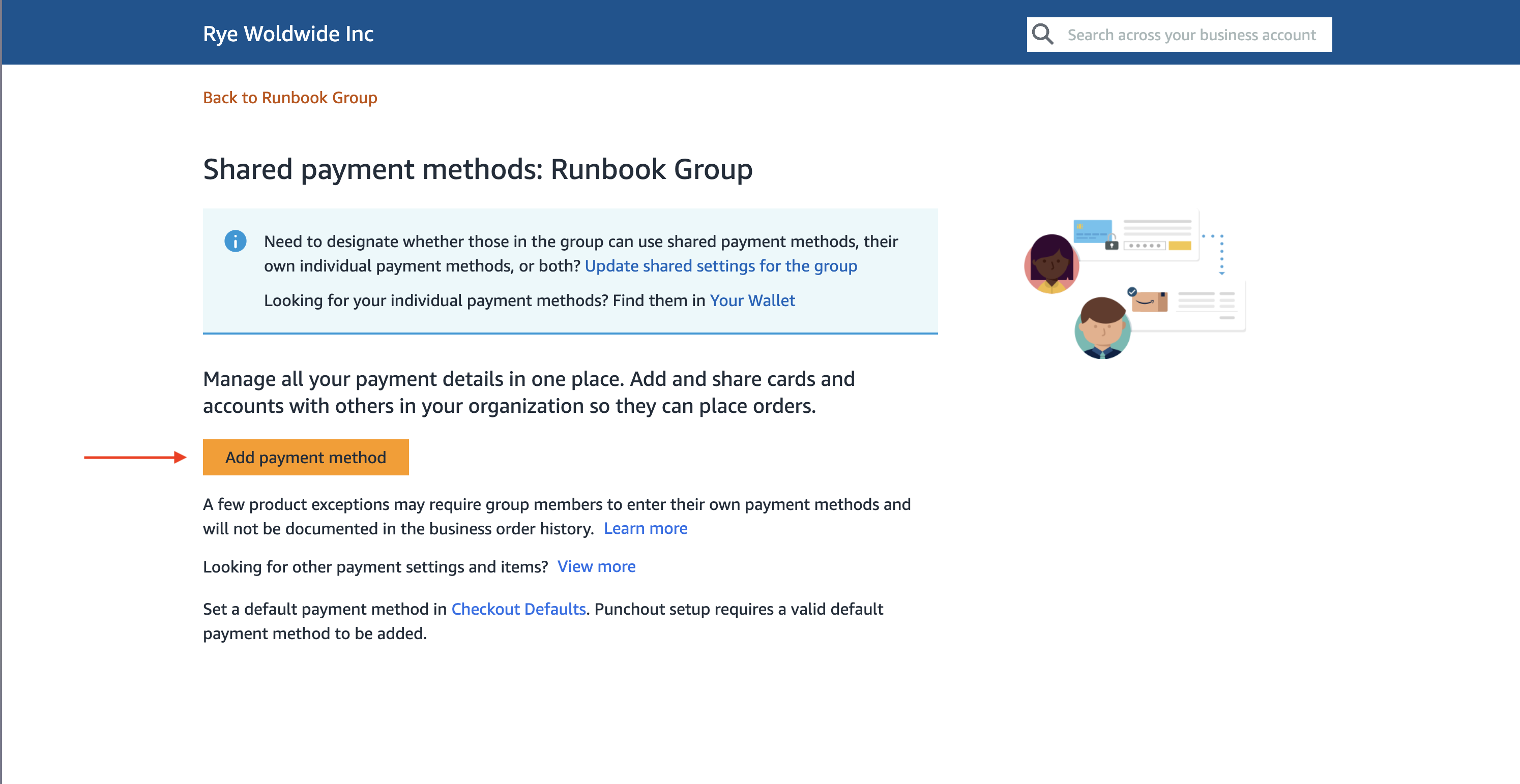
 2. Click the `Add payment method` button on the next screen
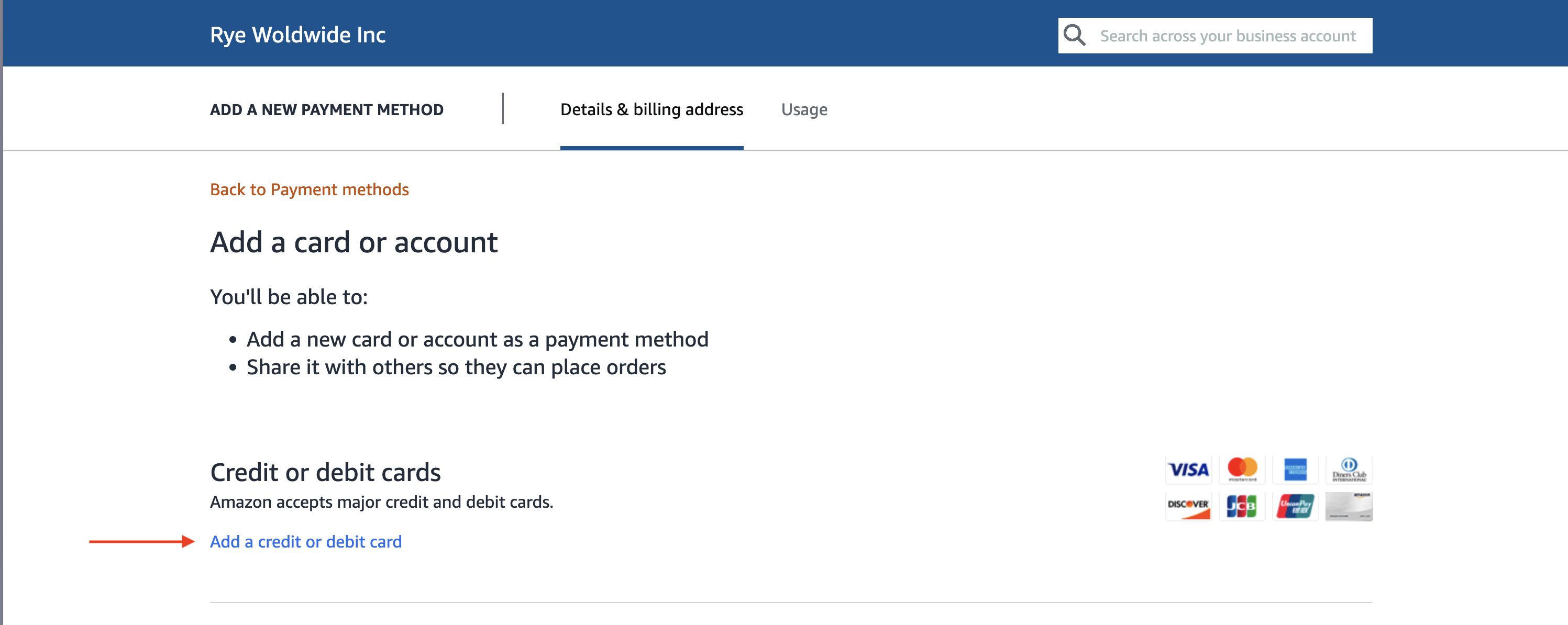
 3. On the `Add payment method` screen, click `Add a credit or debit card`
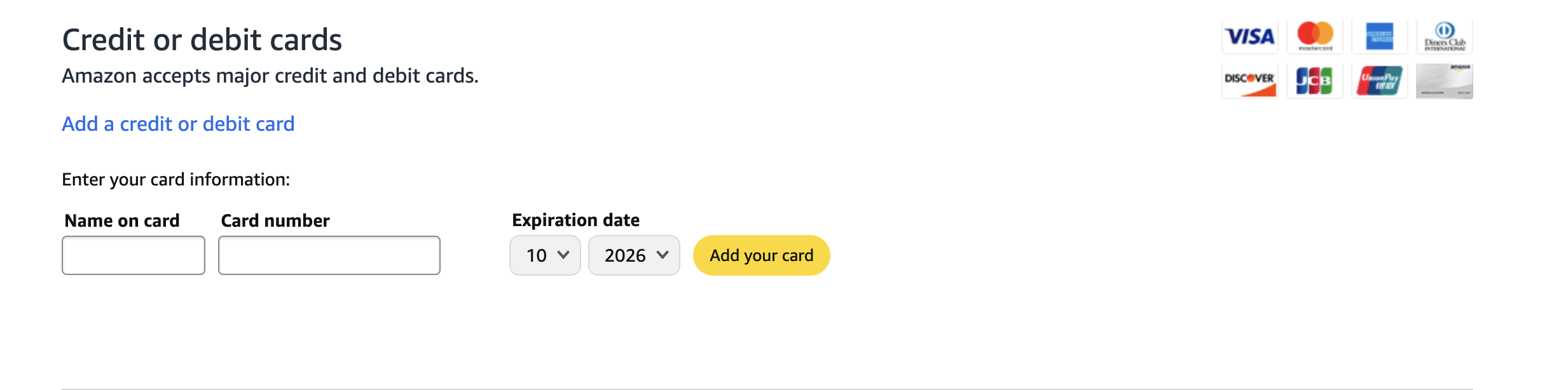
 4. Fill in the credit card details and click `Add your card`
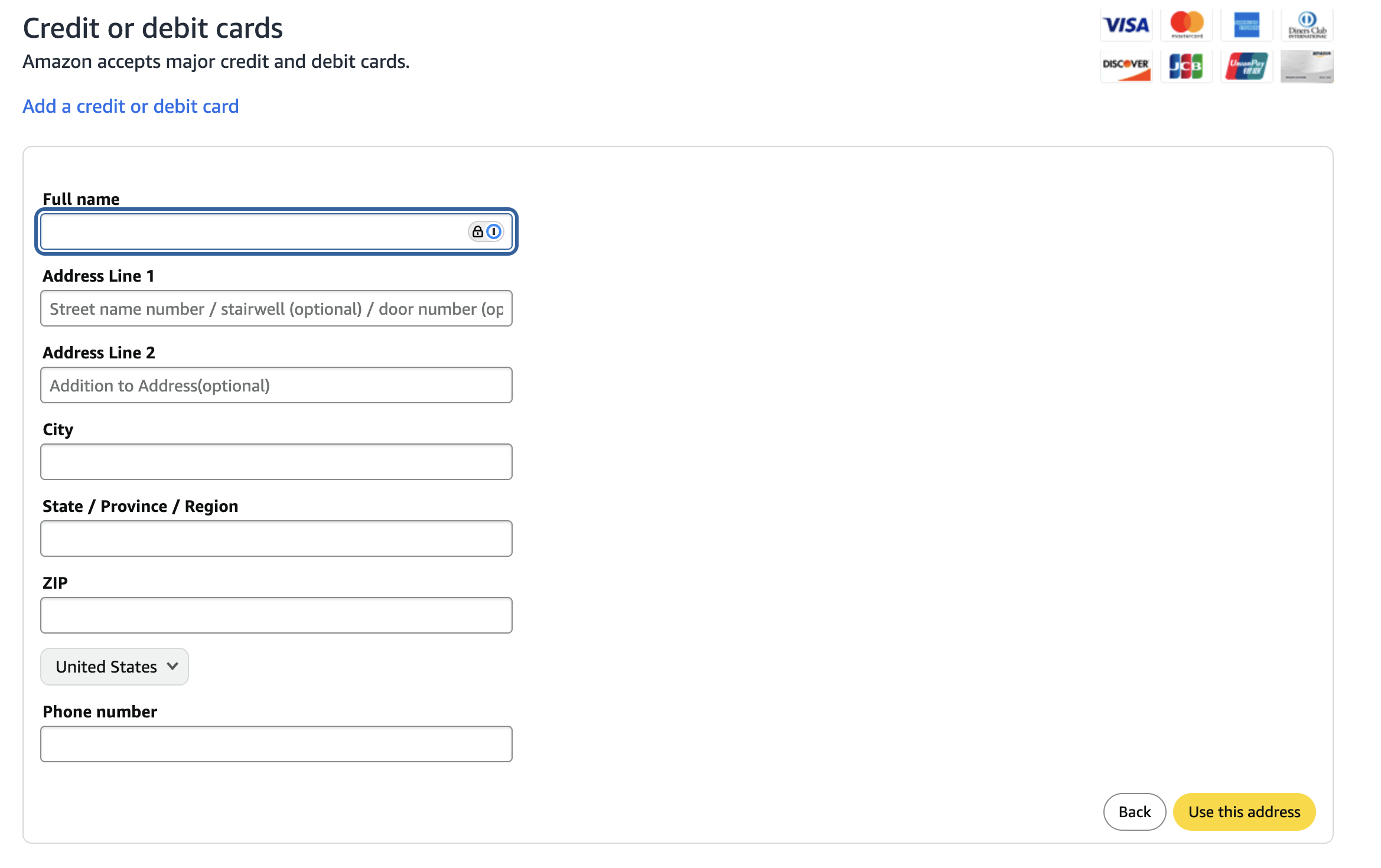
 5. Fill in the billing address info and click `Use this address`
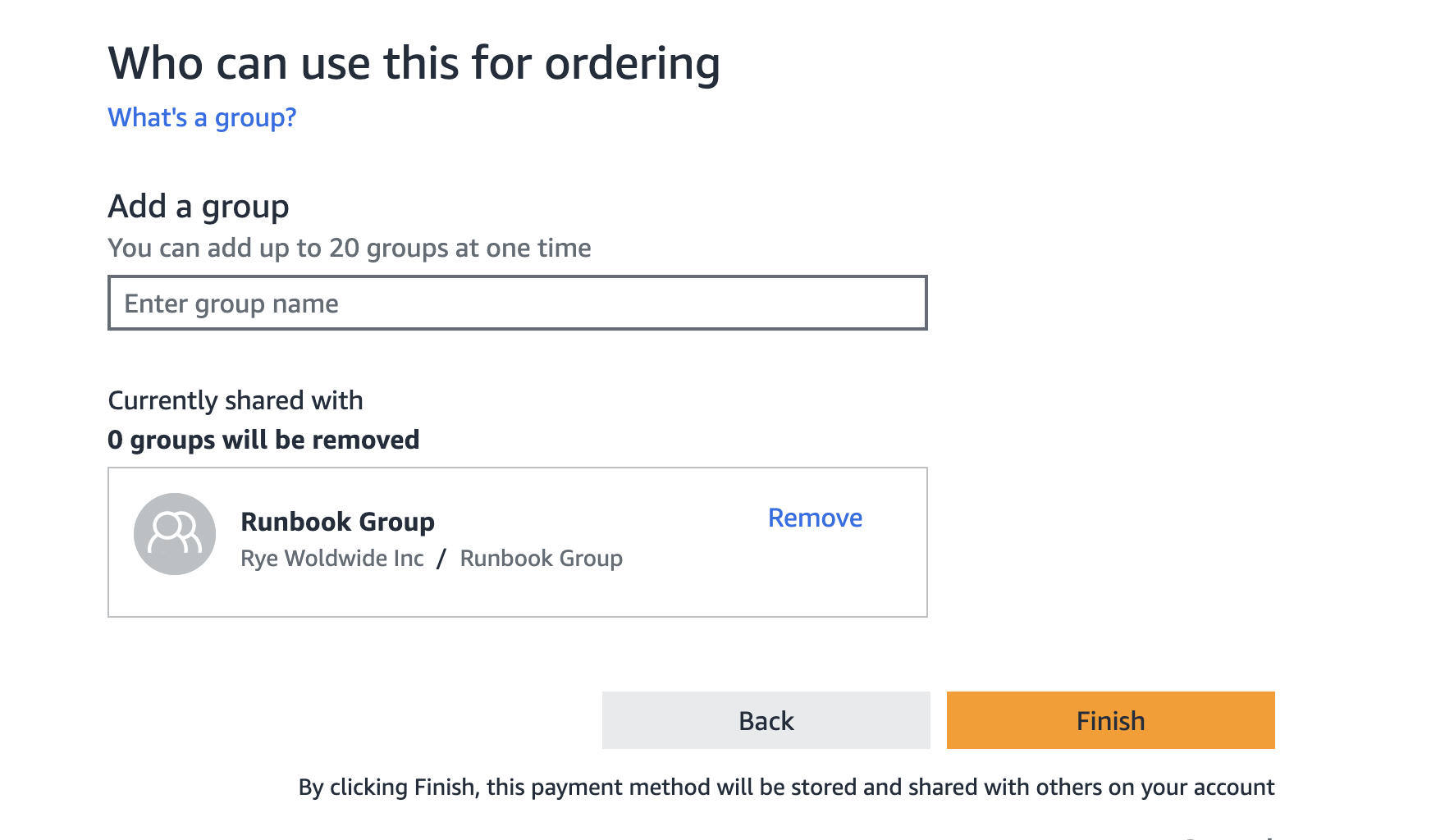
 6. Click the `Finish` button on the next screen
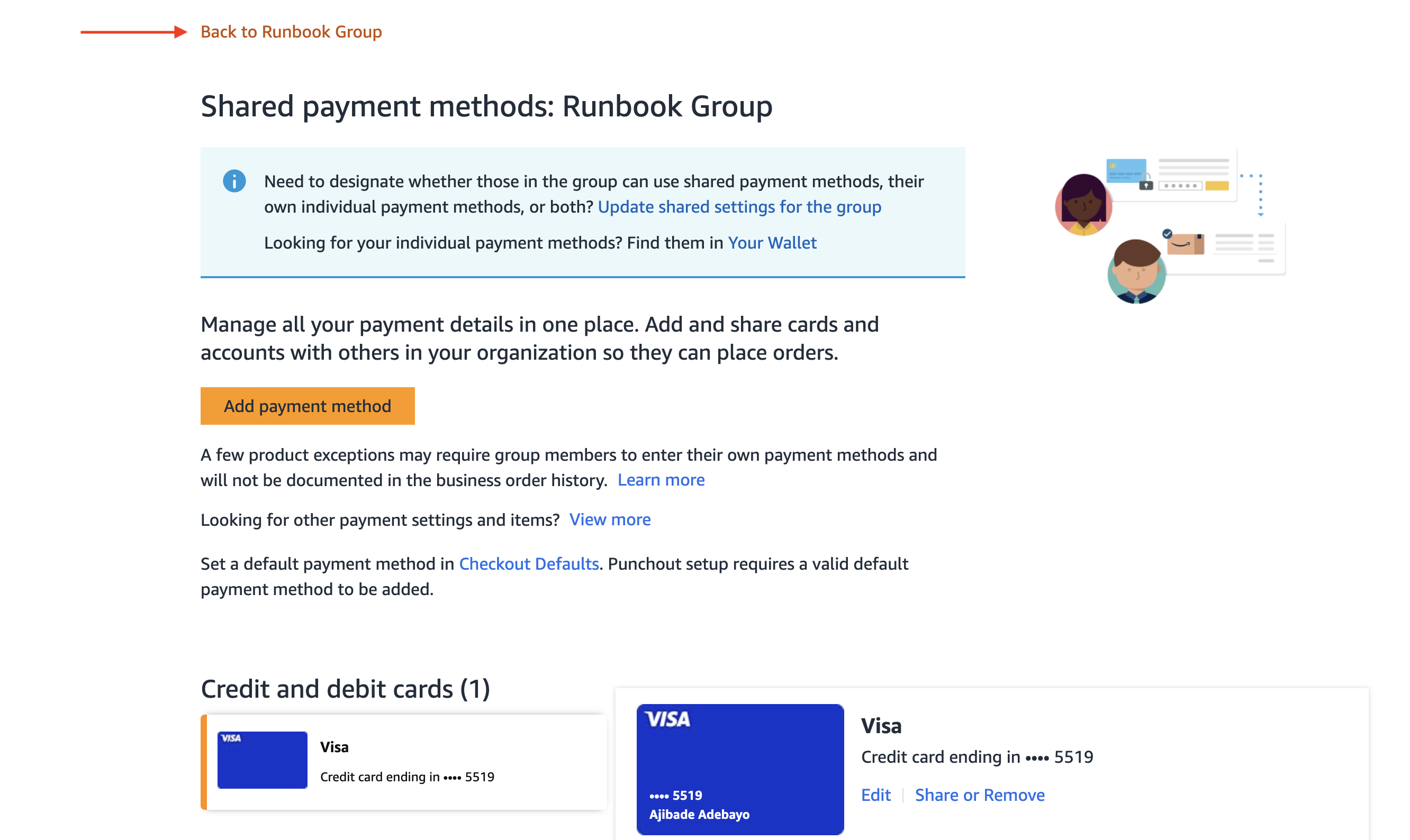
 7. Next, navigate back to the Purchasing system page.
* Click `Back to {Name of your group}`
7. Next, navigate back to the Purchasing system page.
* Click `Back to {Name of your group}`
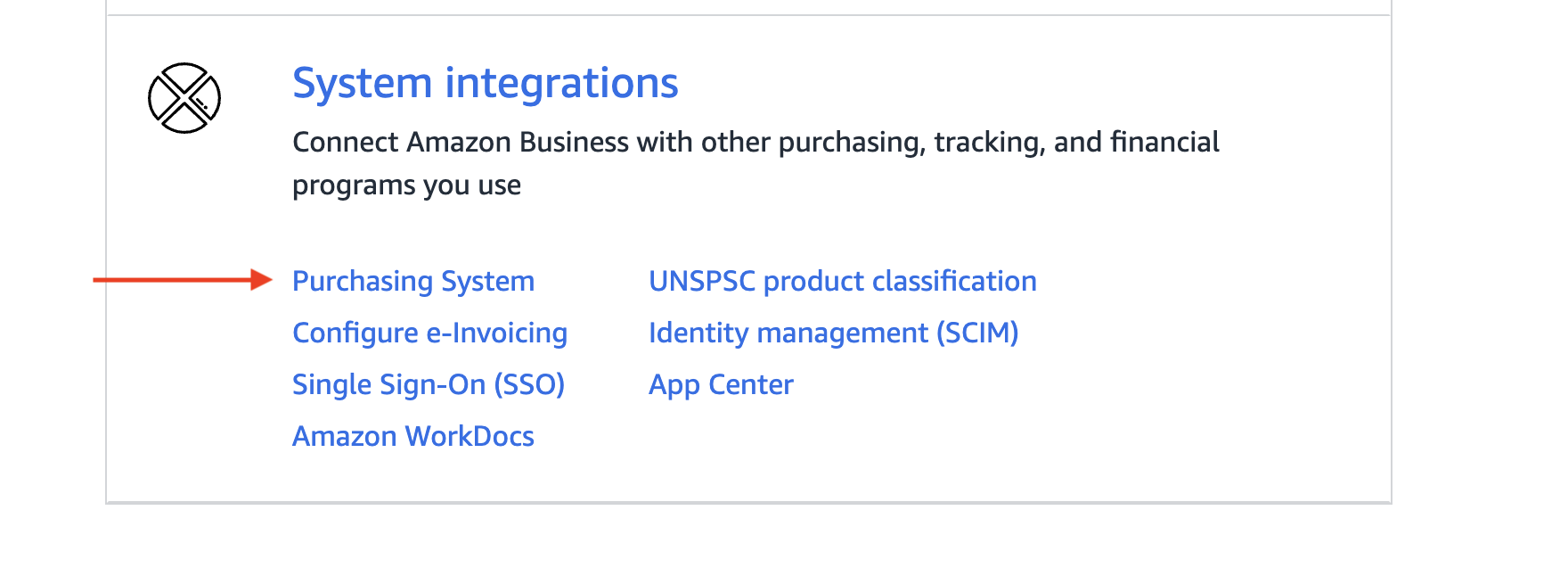
 b. Click `Purchasing System` under `System integrations`
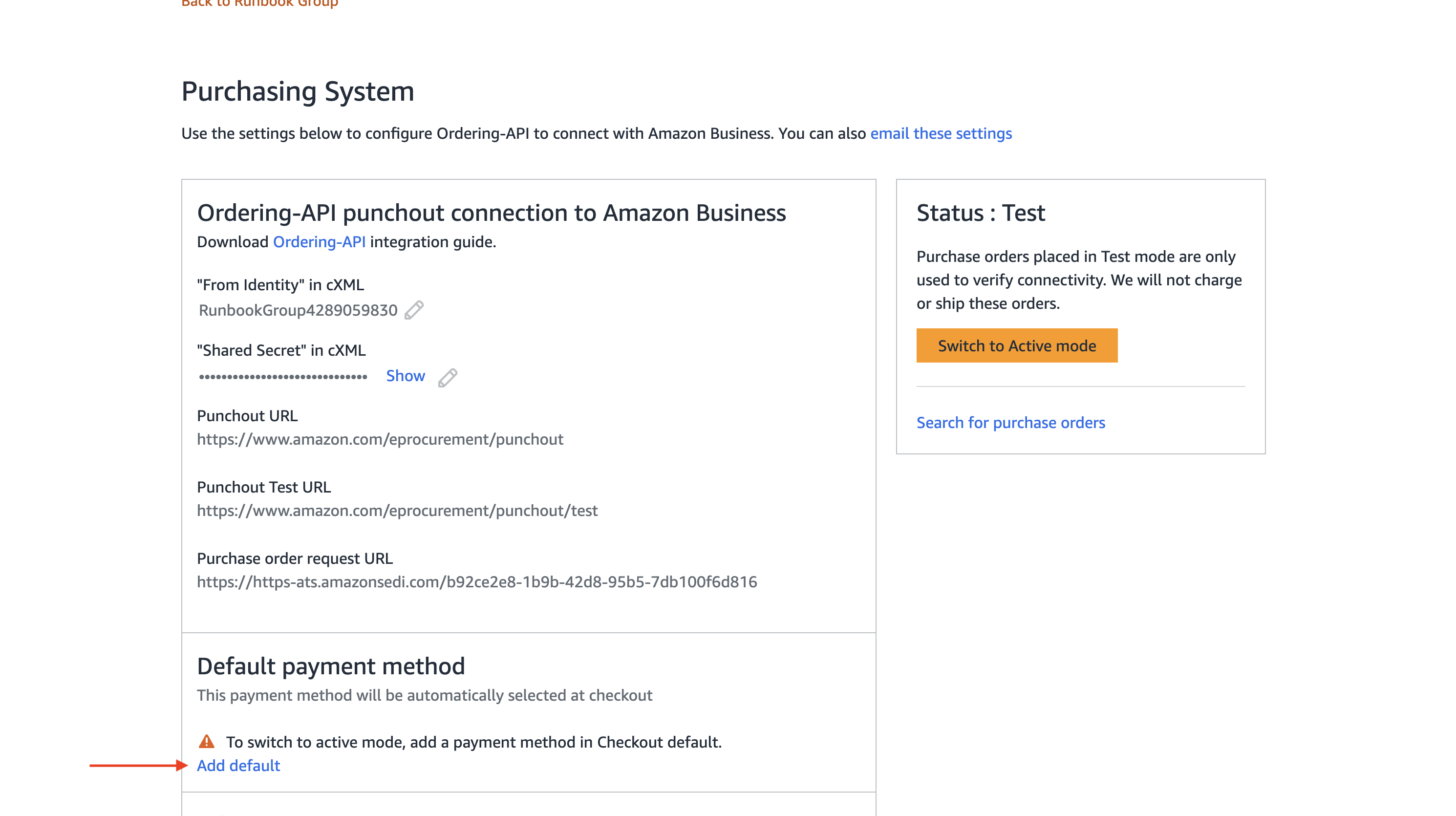
 8. Click on `Add default` under `Default payment method`
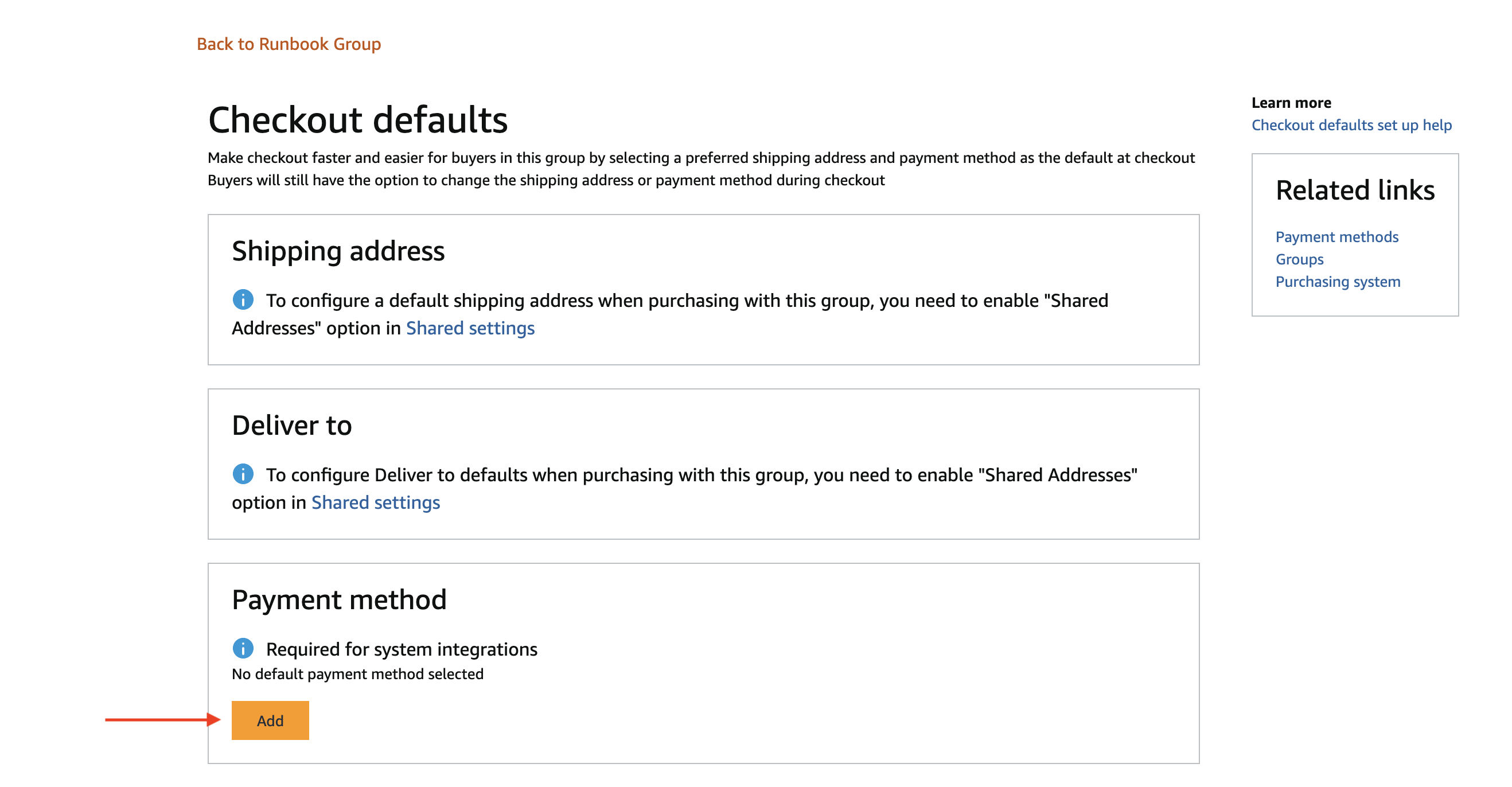
 9. Click on `Add` under the `Payment method` section
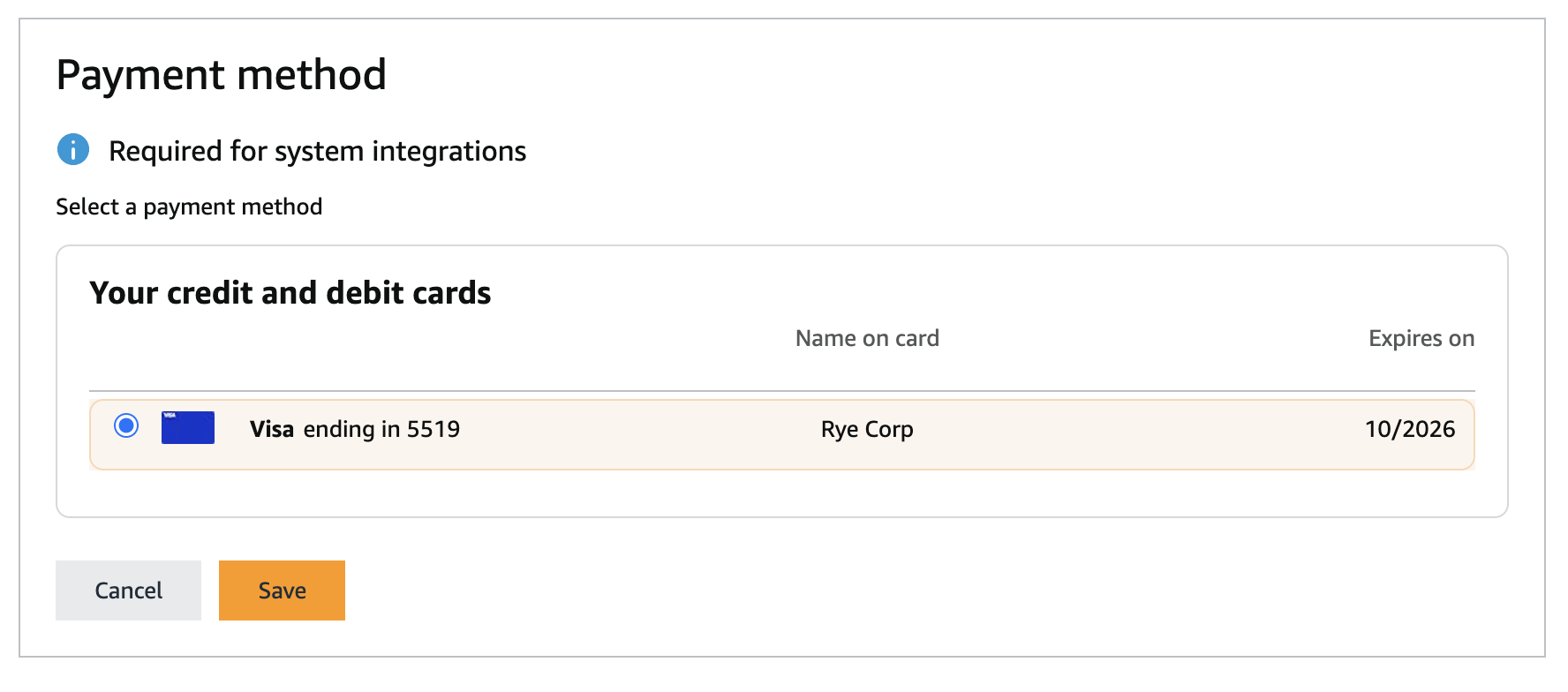
 10. Select the card you just added and click `Save`
 11. The UI will change to showing an `Edit button`
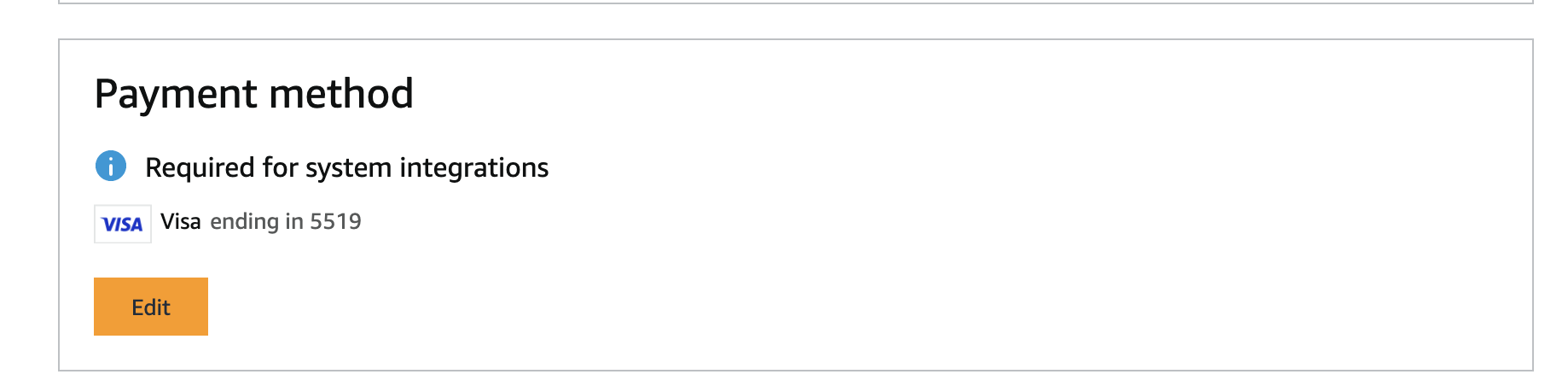 12. Click the `Back to {Name of your group}` and navigate to `Purchasing System`
* `Payment Method` should now look something like this
12. Click the `Back to {Name of your group}` and navigate to `Purchasing System`
* `Payment Method` should now look something like this
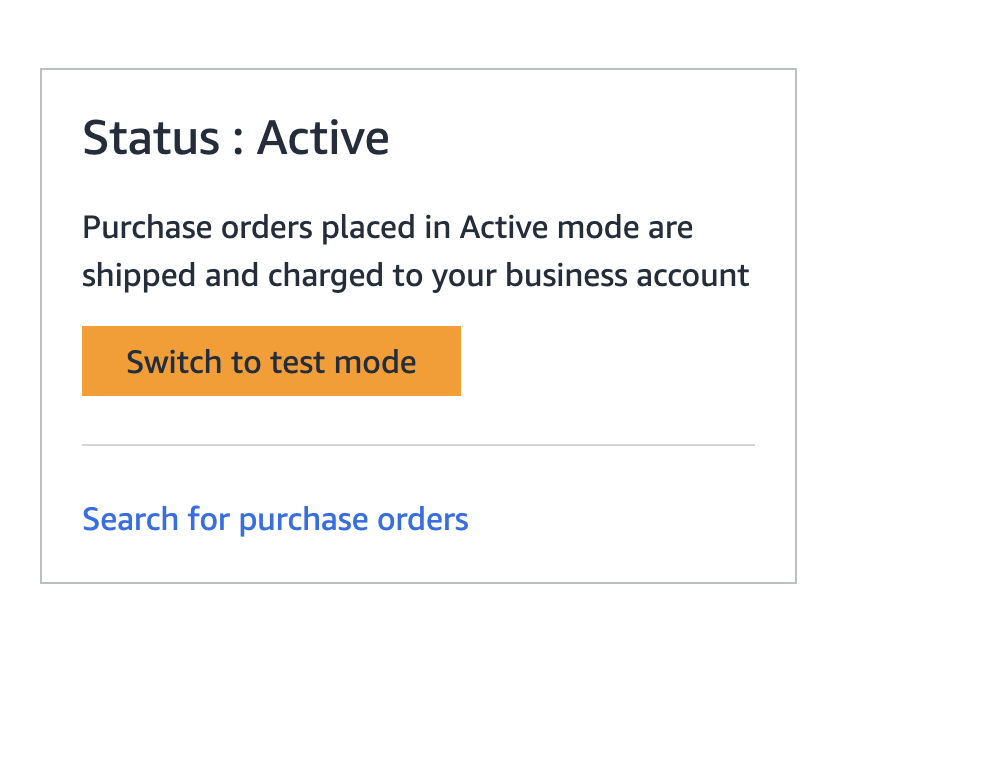
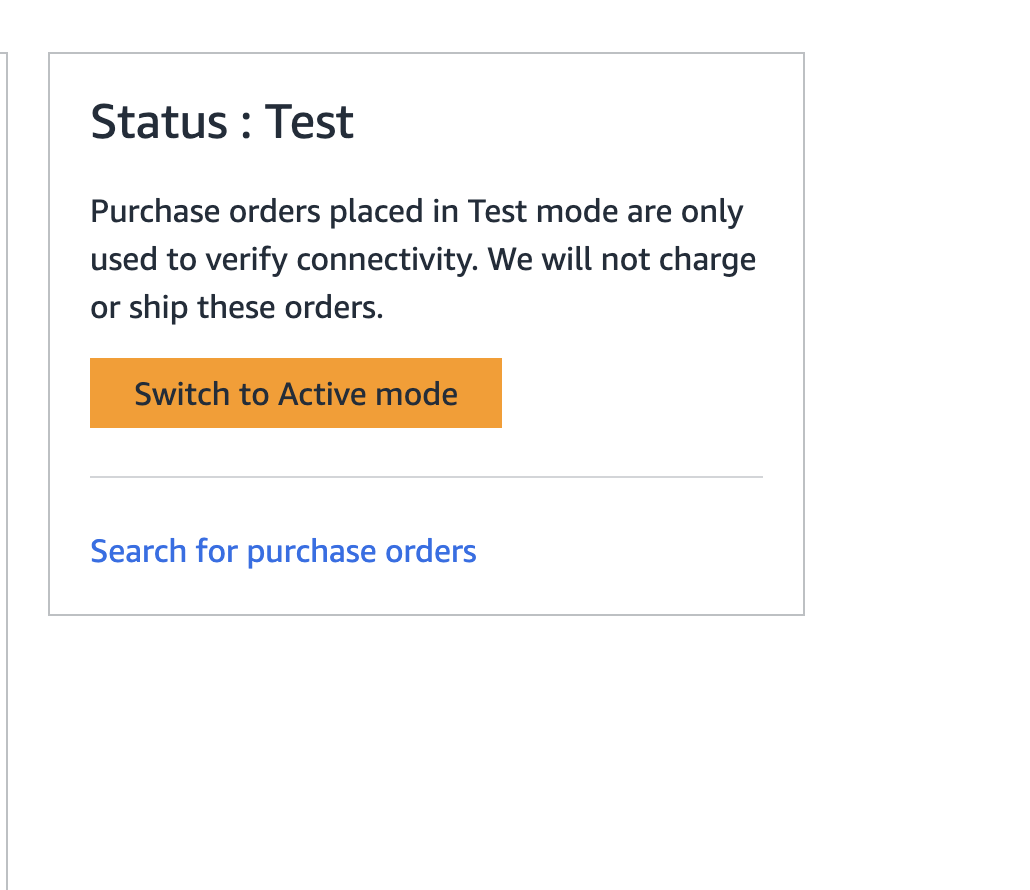
 13. Switch the group to Active mode by clicking the `Switch to Active mode` button on the right side of the page
You can place test orders by leaving the group in Test mode. The orders will not show up in Amazon but it's a good way to test that Rye has permission to place orders with your account.
13. Switch the group to Active mode by clicking the `Switch to Active mode` button on the right side of the page
You can place test orders by leaving the group in Test mode. The orders will not show up in Amazon but it's a good way to test that Rye has permission to place orders with your account.
 14. Click `Switch to Active mode` in the modal
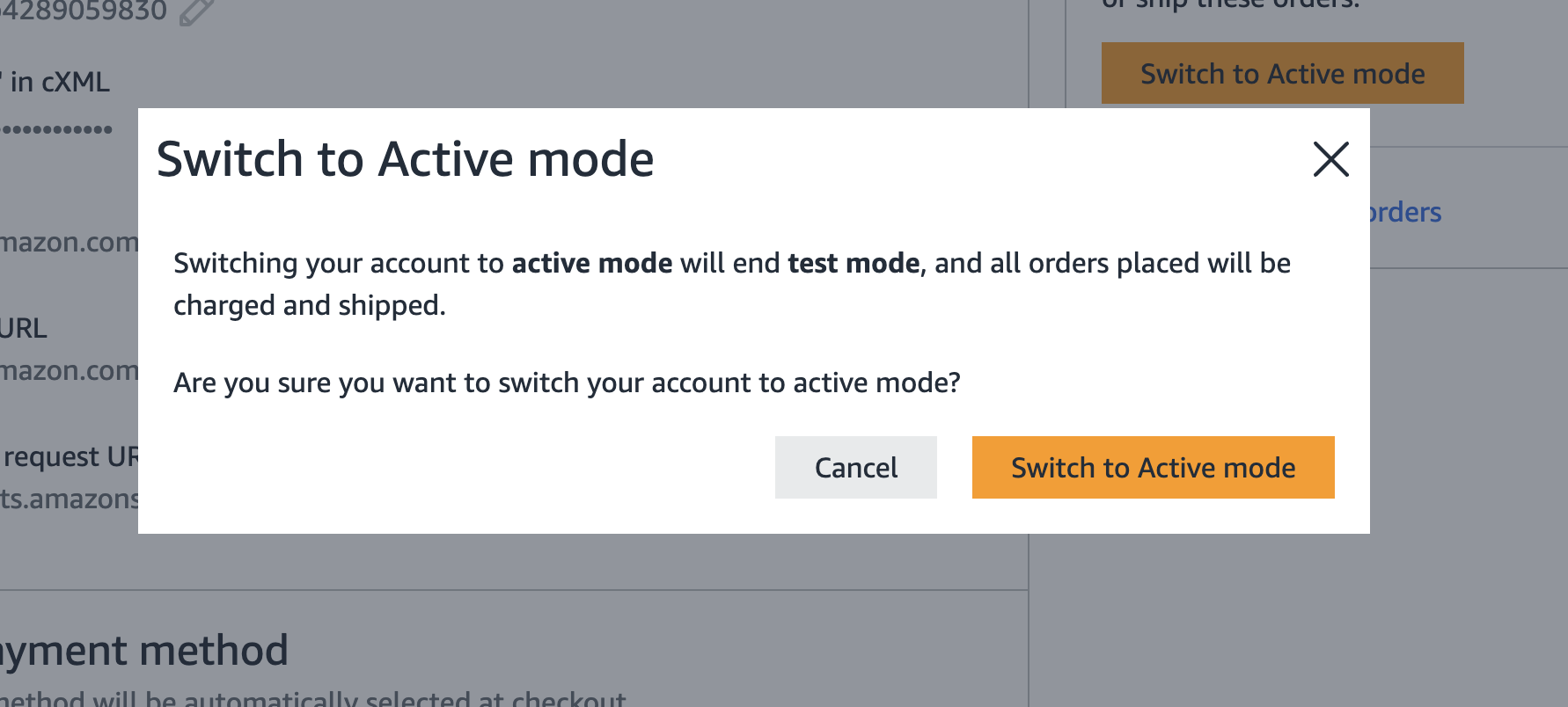 15. Confirm the status is now `Active`