> ## Documentation Index
> Fetch the complete documentation index at: https://docs-test.rye.com/docs/llms.txt
> Use this file to discover all available pages before exploring further.
# Configure Purchasing System
Next we will configure the Purchasing System. Setting this up allows us to fulfill orders on Amazon Business.
1. Click on `Configure purchasing system` under `System integrations`
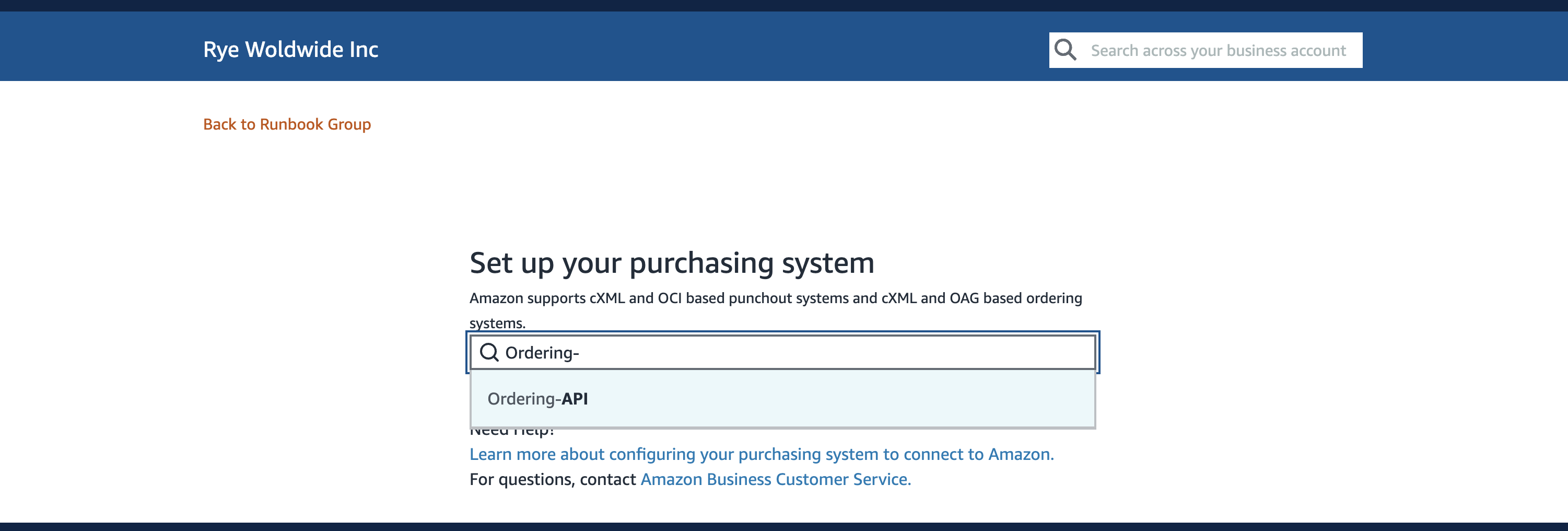
 2. On the next screen, search for `Ordering-API`
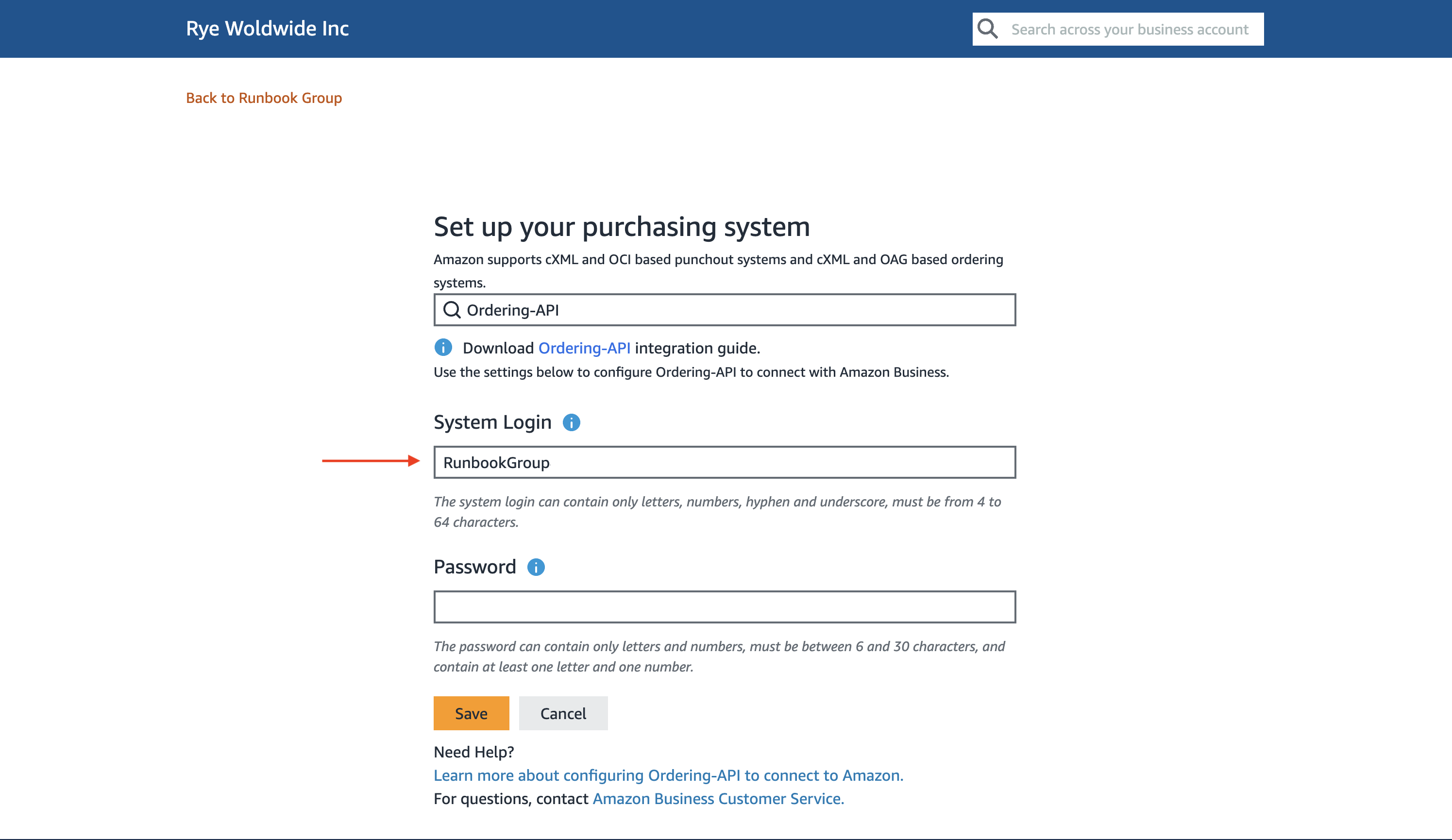
 3. Before clicking the `Save` button, document the value for `System Login`. This is the value that will be used for your `groupId`.
 4. After clicking the `Save` button, you will be taken to the `Purchasing System` screen.
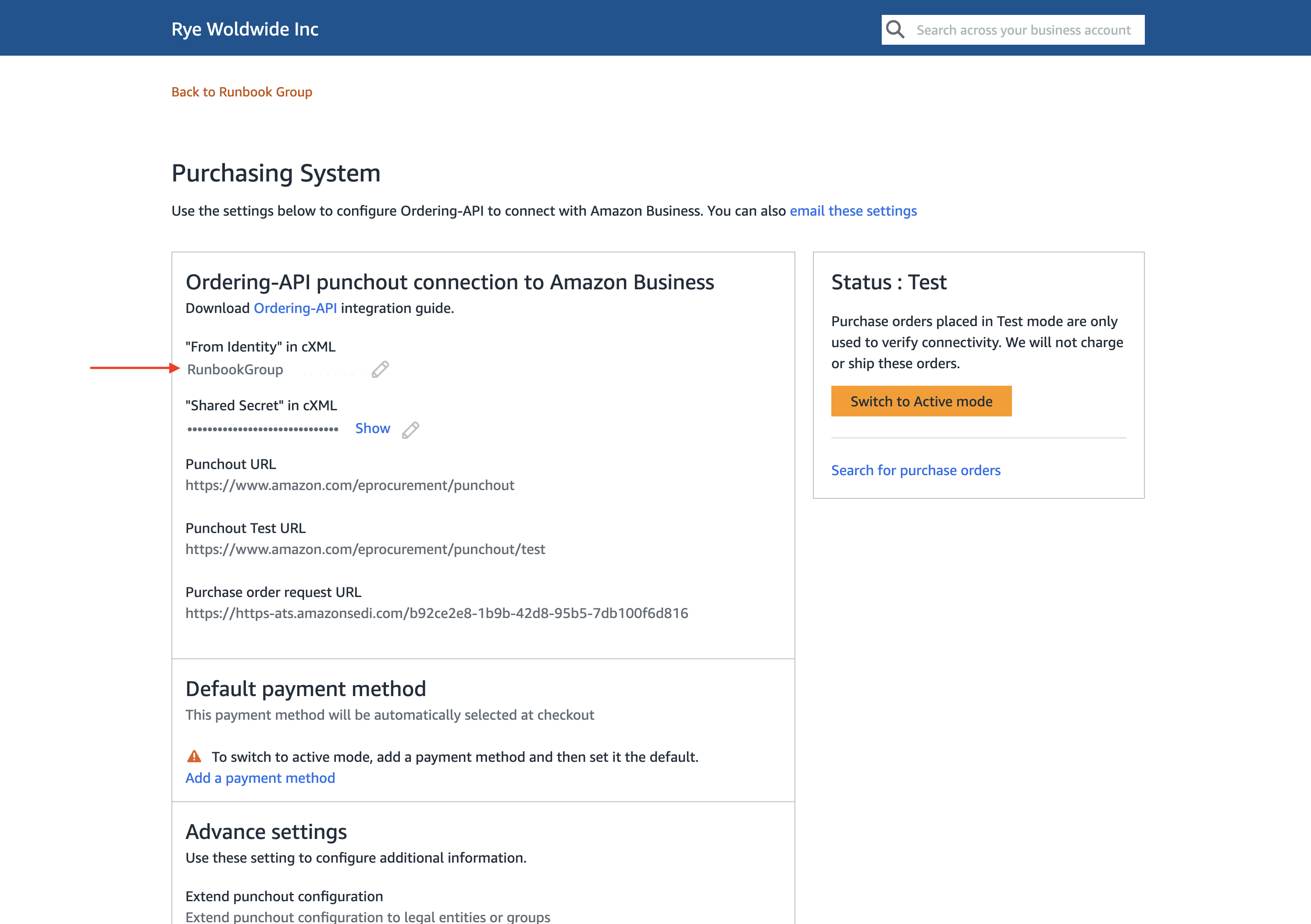
* `"From Identity" in cXML` is another place to get the `groupId`
4. After clicking the `Save` button, you will be taken to the `Purchasing System` screen.
* `"From Identity" in cXML` is another place to get the `groupId`