> ## Documentation Index
> Fetch the complete documentation index at: https://docs-test.rye.com/docs/llms.txt
> Use this file to discover all available pages before exploring further.

# Build an AI chat storefront with Rye and Stripe in Next.js

> Build a conversational AI storefront where users discover and purchase products through chat, using Rye's checkout API and Stripe.

export const OpenWithLLM = ({prompt, tools}) => {
  const handleClick = (tool, e) => {
    const btn = e.currentTarget;
    const labelSpan = btn.querySelector('[data-label]');
    const copiedLabel = btn.getAttribute('data-copied');
    if (tool === 'claude') {
      window.open(`https://claude.ai/new?q=${encodeURIComponent(prompt)}`, '_blank');
      return;
    }
    if (tool === 'lovable') {
      window.open(`https://lovable.dev/?autosubmit=true#prompt=${encodeURIComponent(prompt)}`, '_blank');
      return;
    }
    navigator.clipboard.writeText(prompt);
    if (labelSpan && copiedLabel) {
      const original = labelSpan.textContent;
      labelSpan.textContent = copiedLabel;
      setTimeout(() => {
        labelSpan.textContent = original;
      }, 2500);
    }
    if (tool === 'chatgpt') {
      window.open('https://chatgpt.com/', '_blank');
    }
  };
  const show = tool => !tools || tools.includes(tool);
  const buttonBase = "inline-flex items-center gap-2 px-4 py-2.5 rounded-lg text-sm font-medium transition-all duration-200 border cursor-pointer";
  return <div className="my-6 rounded-xl border border-gray-200 dark:border-gray-700 bg-gray-50 dark:bg-gray-800/50 p-5">
      <div className="flex items-center gap-2 mb-3">
        <svg width="18" height="18" viewBox="0 0 24 24" fill="none" stroke="currentColor" strokeWidth="2" strokeLinecap="round" strokeLinejoin="round" className="text-gray-500 dark:text-gray-400">
          <path d="M12 2L2 7l10 5 10-5-10-5z" />
          <path d="M2 17l10 5 10-5" />
          <path d="M2 12l10 5 10-5" />
        </svg>
        <span className="text-sm font-semibold text-gray-700 dark:text-gray-200">Build this with AI</span>
      </div>
      <p className="text-xs text-gray-500 dark:text-gray-400 mb-4">
        Open a pre-built prompt in your preferred AI tool to generate a complete working integration.
      </p>
      <div className="flex flex-wrap gap-2">
        {show('claude') && <button onClick={e => handleClick('claude', e)} data-copied="Opening..." className={`${buttonBase}`}>
            <svg width="16" height="16" viewBox="0 0 24 24" fill="currentColor">
              <path d="M4.709 15.955l4.72-2.756.08-.046 2.698-1.575c.092-.054.153-.063.2-.063.046 0 .107.01.199.063l2.698 1.575 4.8 2.802c.026.014.04.022.064.037l-7.552 4.41a.46.46 0 01-.232.063.46.46 0 01-.232-.063L4.709 15.955zm7.897-12.42l7.585 4.428a.471.471 0 01.233.408v8.747c0 .03-.003.057-.01.094l-4.812-2.81-2.698-1.574a.384.384 0 01-.199-.327V3.535zm-1.212 0v8.966a.384.384 0 01-.2.327L8.498 14.4l-4.812 2.81a.519.519 0 01-.01-.095V8.37c0-.17.09-.326.233-.408l7.485-4.428z" />
            </svg>
            <span data-label>Open in Claude</span>
          </button>}

        {show('lovable') && <button onClick={e => handleClick('lovable', e)} data-copied="Opening..." className={`${buttonBase}`}>
            <svg width="16" height="16" viewBox="0 0 24 24" fill="currentColor">
              <path d="M12 21.35l-1.45-1.32C5.4 15.36 2 12.28 2 8.5 2 5.42 4.42 3 7.5 3c1.74 0 3.41.81 4.5 2.09C13.09 3.81 14.76 3 16.5 3 19.58 3 22 5.42 22 8.5c0 3.78-3.4 6.86-8.55 11.54L12 21.35z" />
            </svg>
            <span data-label>Open in Lovable</span>
          </button>}

        {show('chatgpt') && <button onClick={e => handleClick('chatgpt', e)} data-copied="Copied! Paste in ChatGPT" className={`${buttonBase}`}>
            <svg width="16" height="16" viewBox="0 0 24 24" fill="currentColor">
              <path d="M22.282 9.821a5.985 5.985 0 00-.516-4.91 6.046 6.046 0 00-6.51-2.9A6.065 6.065 0 0011.708.414a6.116 6.116 0 00-5.89 4.412 6.005 6.005 0 00-4.014 2.91 6.048 6.048 0 00.749 7.084 5.98 5.98 0 00.516 4.911 6.051 6.051 0 006.511 2.9 6.056 6.056 0 004.548 1.956 6.116 6.116 0 005.889-4.411 6.006 6.006 0 004.014-2.912 6.043 6.043 0 00-.749-7.084zM13.109 21.95a4.582 4.582 0 01-2.94-1.063c.037-.02.102-.056.144-.081l4.884-2.822a.794.794 0 00.4-.688v-6.892l2.064 1.192a.073.073 0 01.04.056v5.707a4.601 4.601 0 01-4.592 4.592zM3.6 17.938a4.556 4.556 0 01-.546-3.072c.036.021.099.06.144.084l4.884 2.822a.796.796 0 00.79 0l5.964-3.444v2.384a.074.074 0 01-.03.063L9.88 19.615a4.6 4.6 0 01-6.28-1.677zM2.338 7.875a4.56 4.56 0 012.394-2.007c0 .042-.003.114-.003.164v5.645a.788.788 0 00.4.688l5.964 3.443-2.064 1.192a.075.075 0 01-.071.006L4.032 14.16a4.6 4.6 0 01-1.694-6.284zM18.93 11.99l-5.965-3.443 2.065-1.192a.074.074 0 01.07-.006l4.927 2.844a4.588 4.588 0 01-.71 8.282v-5.797a.793.793 0 00-.387-.688zm2.056-3.08c-.037-.022-.1-.06-.144-.084L15.96 6.004a.795.795 0 00-.79 0L9.205 9.448V7.064a.073.073 0 01.03-.063l4.925-2.843a4.591 4.591 0 016.826 4.752zM8.114 12.544L6.05 11.352a.073.073 0 01-.04-.057V5.59a4.59 4.59 0 017.533-3.523c-.037.02-.102.055-.144.08L8.514 4.97a.794.794 0 00-.4.688v6.886zm1.12-2.418l2.657-1.534 2.656 1.534v3.068l-2.656 1.534-2.657-1.534V10.126z" />
            </svg>
            <span data-label>Open in ChatGPT</span>
          </button>}

        {show('cursor') && <button onClick={e => handleClick('cursor', e)} data-copied="Copied! Paste in Composer" className={`${buttonBase}`}>
            <svg width="16" height="16" viewBox="0 0 24 24" fill="currentColor">
              <path d="M3.147 2.245a.6.6 0 01.652-.054l17.4 9.6a.6.6 0 01.014 1.046l-6.9 4.027-4.182 5.178a.6.6 0 01-1.075-.232L3.013 2.858a.6.6 0 01.134-.613zM10.17 15.2l3.563-2.08L5.34 4.44l4.83 10.76zm.894 1.09l-1.1 1.362 1.357 4.58 2.83-3.504-3.087-2.438z" />
            </svg>
            <span data-label>Copy for Cursor</span>
          </button>}

        {show('vscode') && <button onClick={e => handleClick('vscode', e)} data-copied="Copied! Paste in Copilot Chat" className={`${buttonBase}`}>
            <svg width="16" height="16" viewBox="0 0 24 24" fill="currentColor">
              <path d="M17.583 2.603l-5.402 4.914L6.968 3.26 4.2 4.86v14.28l2.768 1.6 5.213-4.257 5.402 4.914L21.6 19.2V4.8l-4.017-2.197zM17.4 17.063l-4.392-3.994 4.392-3.994v7.988zM6.6 15.674V8.326l3.695 3.674L6.6 15.674z" />
            </svg>
            <span data-label>Copy for Copilot</span>
          </button>}

        {show('claude-code') && <button onClick={e => handleClick('claude-code', e)} data-copied="Copied! Paste in Claude Code" className={`${buttonBase}`}>
            <svg width="16" height="16" viewBox="0 0 24 24" fill="none" stroke="currentColor" strokeWidth="2" strokeLinecap="round" strokeLinejoin="round">
              <polyline points="4 17 10 11 4 5" />
              <line x1="12" y1="19" x2="20" y2="19" />
            </svg>
            <span data-label>Copy for Claude Code</span>
          </button>}
      </div>
    </div>;
};

export const llmPrompt = `Build a complete, runnable Next.js AI chat storefront that lets users discover products through conversation and purchase them using Rye's Universal Checkout API and Stripe for payment. Use the official Rye TypeScript SDK (checkout-intents) for all Rye API calls.

## What Rye Does
Rye is a commerce API that lets you sell products from any merchant (Amazon, Shopify, etc.) in your app. You provide a product URL and buyer details, Rye fetches pricing/shipping from the merchant, and you confirm with a Stripe payment token to place the order.

## Tech Stack
- Next.js App Router with TypeScript and Tailwind CSS
- checkout-intents SDK (npm install checkout-intents) for Rye API calls
- Vercel AI SDK (ai, @ai-sdk/openai, @ai-sdk/react) for streaming chat with tool-calling
- Stripe Elements (@stripe/stripe-js, @stripe/react-stripe-js) for card tokenization
- cheerio and react-markdown for parsing and rendering

## Environment Variables
OPENAI_API_KEY=sk-...
CHECKOUT_INTENTS_API_KEY=<from https://staging.console.rye.com/account>
CHECKOUT_INTENTS_BASE_URL=https://staging.api.rye.com
NEXT_PUBLIC_STRIPE_PUBLISHABLE_KEY=pk_test_51LgDhrHGDlstla3fdqlULAne0rAf4Ho6aBV2cobkYQ4m863Sy0W8DNu2HOnUeYTQzQnE4DZGyzvCB8Yzl1r38isl00H9sVKEMu

## Architecture
IMPORTANT: All Rye SDK calls MUST happen server-side. Never import or use the checkout-intents SDK in client components — the API key must stay on the server.
- Frontend (client components): Chat UI, checkout modal, Stripe CardElement. Calls internal Next.js API routes via fetch.
- Backend (Next.js Route Handlers in app/api/): Uses the checkout-intents SDK to talk to Rye. The API key never leaves the server.
- Stripe's publishable key (NEXT_PUBLIC_STRIPE_PUBLISHABLE_KEY) is the only key safe for the client.

## Rye SDK Setup (server-side only, e.g. lib/rye.ts)
import CheckoutIntents from 'checkout-intents';
const client = new CheckoutIntents(); // reads CHECKOUT_INTENTS_API_KEY from env automatically

## Buyer Schema — EXACT FIELDS REQUIRED BY THE SDK
The checkout-intents SDK exports a Buyer type. You MUST use these exact field names (camelCase) — any deviation will cause a 422 validation error:
interface Buyer {
  firstName: string;    // required
  lastName: string;     // required
  email: string;        // required
  phone: string;        // required — plain string, e.g. "1234567890"
  address1: string;     // required
  address2?: string;    // optional
  city: string;         // required
  province: string;     // required — e.g. "NY", "CA" for US states
  country: string;      // required — 2-letter ISO code, e.g. "US"
  postalCode: string;   // required
}
Do NOT rename these fields (e.g. do not use "state" instead of "province", "zip" instead of "postalCode", "addressLine1" instead of "address1"). The buyer form in the UI must collect these exact fields and pass them unchanged to the SDK.

## Project Structure
app/
  layout.tsx
  page.tsx
  api/
    chat/route.ts          — streaming chat endpoint with tool-calling (server-side)
    checkout/create-intent/route.ts  — POST: creates Rye checkout intent using SDK (server-side)
    checkout/confirm-intent/route.ts — POST: confirms intent with Stripe token using SDK (server-side)
    checkout/get-intent/route.ts     — GET: retrieves intent state using SDK (server-side)
components/
  Chat.tsx                — main chat component with checkout modal state (client)
  ChatInput.tsx           — text input for sending messages (client)
  CheckoutModal.tsx       — modal: buyer form → order summary → Stripe card → confirmation (client)
  messages/
    Message.tsx           — renders text and tool-result message parts (client)
    ProductGalleryMessage.tsx — renders product cards with Buy buttons (client)
lib/
  rye.ts                  — Rye SDK client instance and helper functions (SERVER-SIDE ONLY)
  types.ts                — ShoppingProduct interface
tools/
  amazon.ts               — Amazon product search tool (server-side, scrapes search results)

## Rye SDK Usage in Route Handlers (lib/rye.ts — SERVER-SIDE ONLY)

import CheckoutIntents from 'checkout-intents';
const client = new CheckoutIntents();

// Create checkout intent and poll until offer is ready
export async function createAndWaitForOffer(buyer, productUrl) {
  return await client.checkoutIntents.createAndPoll({
    buyer, productUrl, quantity: 1,
  });
  // Returns intent with state "awaiting_confirmation" and offer details:
  // intent.offer.cost: { subtotal, tax, total } (each with amountSubunits, currencyCode)
  // intent.offer.shipping: { availableOptions, selectedOptionId }
}

// Confirm with Stripe token and poll until completed
export async function confirmAndWaitForCompletion(intentId, stripeToken) {
  return await client.checkoutIntents.confirmAndPoll(intentId, {
    paymentMethod: { stripeToken, type: 'stripe_token' },
  });
  // Returns intent with state "completed" or "failed"
}

// Get current intent state
export async function getIntent(intentId) {
  return await client.checkoutIntents.retrieve(intentId);
}

// Look up product details by URL
export async function lookupProduct(url) {
  return await client.products.lookup({ url });
}

## AI SDK v6 — CRITICAL
In AI SDK v6, convertToModelMessages is ASYNC. You MUST await it:
  messages: await convertToModelMessages(messages)  // CORRECT
  messages: convertToModelMessages(messages)         // WRONG — causes "messages do not match ModelMessage[] schema" error
Also: toUIMessageStreamResponse() is the correct response method when using useChat.

## Stripe CardElement — CRITICAL: Prevent Unmounting
The Stripe Elements provider and CardElement MUST stay mounted throughout the entire checkout flow. If the CardElement is conditionally rendered (e.g. only shown during the payment step), it will unmount and Stripe will throw: "We could not retrieve data from the specified Element."
FIX: Always render the CardElement inside the Elements provider, but use CSS (display: none or a hidden class) to hide it during non-payment steps. Do NOT use conditional rendering ({step === 'payment' && <CardElement />}) — instead use: <div className={step !== 'payment' ? 'hidden' : ''}><CardElement /></div>. Also ensure the stripePromise is created once at module scope (const stripePromise = loadStripe(...)) and not recreated on re-renders.

## Key Features to Implement
1. Streaming chat using Vercel AI SDK useChat hook with tool-calling support
2. Server-side Amazon product search tool that returns product name, price, image, rating, and full product detail URL (https://www.amazon.com/dp/ASIN format)
3. Product gallery message component showing product cards with "Buy" buttons in the chat — this is the ONLY way products should be rendered. The LLM's system prompt should instruct it to NOT re-list products as text or markdown after the search tool returns results (e.g. set the system prompt to: "You are a helpful AI shopping assistant. When the searchProducts tool returns results, they will be displayed as interactive product cards automatically — do NOT list the products again in your text response. Just provide a brief conversational comment like 'Here are some options I found!' and let the product cards speak for themselves.")
4. Checkout modal flow: buyer info form → client calls /api/checkout/create-intent → server uses SDK to poll for offer → show order summary (subtotal, shipping, tax, total) → collect card via Stripe CardElement → client calls /api/checkout/confirm-intent → server uses SDK to confirm → show success/failure
5. Stripe CardElement integration using Rye's publishable key for card tokenization (client-side only). The CardElement must always be mounted (use CSS to hide/show) — never conditionally render it.
6. Auto-scroll chat, loading states, error handling
7. ALL Rye SDK calls happen in Route Handlers or lib/rye.ts — client components only call /api/ routes

## Amazon Search Tool
The server-side tool accepts a query string, fetches the Amazon search results page, and parses product data using cheerio. It MUST extract full Amazon product detail URLs in the format https://www.amazon.com/dp/ASIN (e.g. https://www.amazon.com/dp/B0CX23V2ZK). Extract the URL from the product link's href attribute — Amazon search result links contain the /dp/ASIN path. Never return just "https://www.amazon.com" as a product URL — every product must have its complete detail page URL with the /dp/ASIN path so that Rye can look up the product. The tool returns structured ShoppingProduct[] results with fields: name, price, imageUrl, rating, url.

## Product Display Rules — CRITICAL
When the search tool returns products, they MUST ONLY be displayed as product cards with a "Buy" button via the ProductGalleryMessage component (rendered from the tool-result message part). The LLM MUST NOT also list the products again as text, markdown links, or a numbered list with "View on Amazon" links. After the tool returns results, the assistant should only provide a brief conversational message (e.g. "Here are some options I found!") — the product gallery component already shows all the product details. Do NOT duplicate product information in the text response.

Generate the complete application with all files. Include a README with setup and run instructions. Make sure the .gitignore includes .env and .env.* so secrets are never committed to version control. After generating the code, ask the user for their Rye API key and OpenAI API key so you can update the .env or .env.local file with the actual CHECKOUT_INTENTS_API_KEY and OPENAI_API_KEY values. Also confirm which environment they want to use (staging or production) so you can set CHECKOUT_INTENTS_BASE_URL accordingly.`;

<OpenWithLLM prompt={llmPrompt} />

Learn how to build an agentic checkout flow: discover product URLs in chat, capture buyer identity, tokenize card details with Stripe, and confirm a Rye Checkout Intent to place the order.

## Who this is for

Developers building AI chat interfaces where users can buy physical products across Amazon, Shopify, and beyond. We’ll use the [Vercel AI SDK](https://ai-sdk.dev/docs/introduction) for tool-calling, [Stripe Elements](https://docs.stripe.com/payments/elements) for card collection, and Universal Checkout API for submitting orders via Checkout Intents.

## What you'll build

A minimal Next.js app with a streaming chat. The assistant can:

1. Search Amazon (and the wider web) to surface real product URLs.
2. Show a Buy button next to results.
3. Open a modal that collects buyer identity (name, email, phone) and creates a Checkout Intent with Rye.
4. Collect card details using Stripe Card Element and tokenize on the client.
5. Confirm the Checkout Intent by sending the Stripe token to Rye, which places the order on the third‑party site.

We'll do this with clean file boundaries so you can drop this into an existing project.

## See Rye in Action

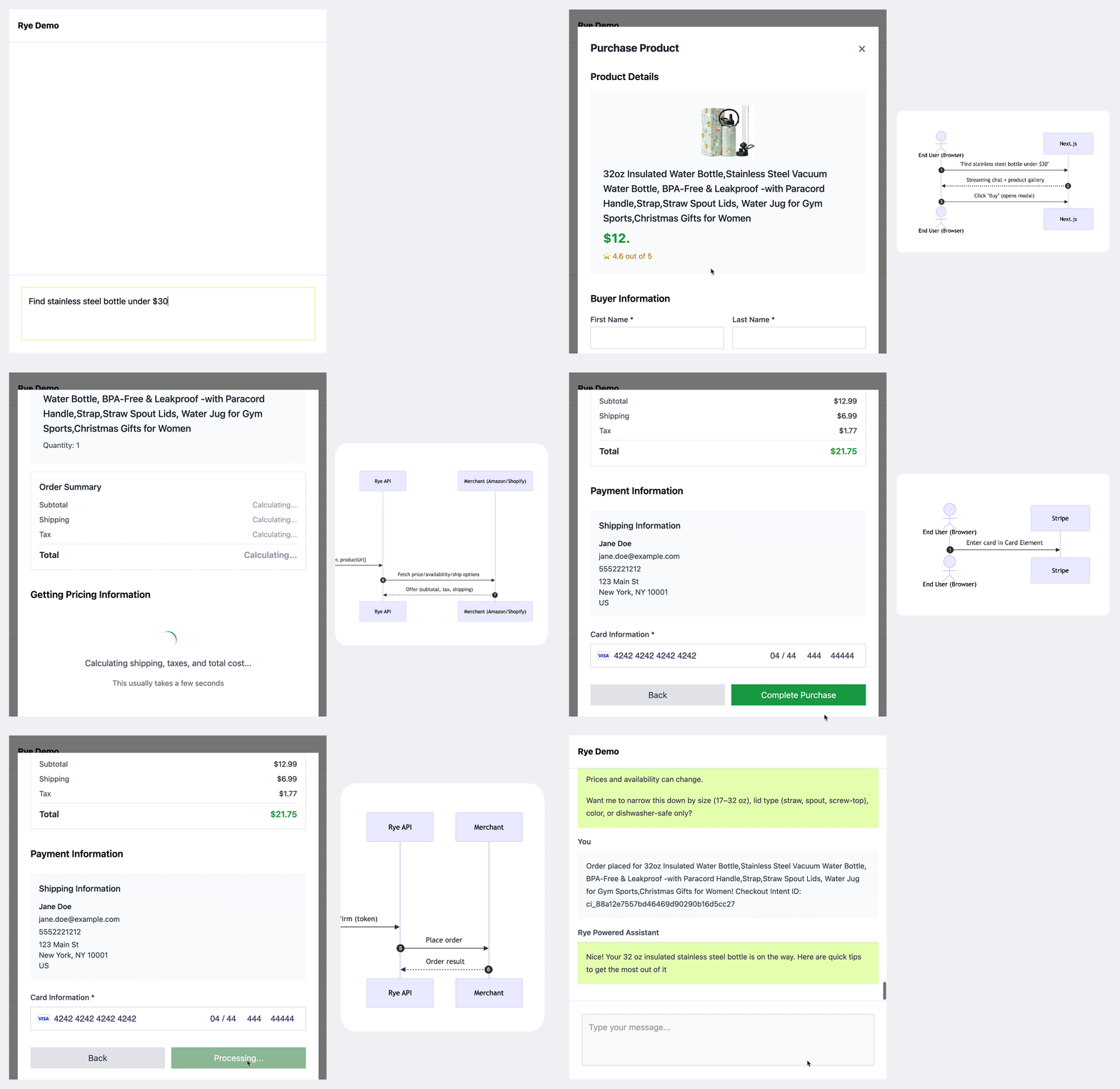
Watch a complete order flow — from product URL to purchase confirmation — all without leaving your app.

<img src="https://mintcdn.com/rye-35/KejNaHy6lA0PZ1eT/images/chat-storefront/demo.gif?s=5d393d036efaa00f391aca08d7aa3a61" alt="AI chat storefront with Rye" width="1512" height="980" data-path="images/chat-storefront/demo.gif" />

<Accordion title="Reference diagram">
  <Link href="https://mermaid.live/view#pako:eNqNVO9r2zAQ_VduYh8Sll9ukzQxLNB2HRTWNTTrl2EYinWOtcqSJ8tN3Sz_-05x3LI0g-EPOqF7997dk7VhsRHIQlbgrxJ1jJ8kX1meRRqAl87oMlui3e1iZyzcF2iBF3ClRR23LqxZU9D2OTm3TsYy59rBwlmZo8-to8Pzr_jk_Klfez-Lw-O7aof1y_n8-vD0Bm2c-oBSXuLWecafje4vUpPLpCJF_oOdzu5s5olCiNhnSdoLx6VWWBQUISpYGucUQqkF9fT-dBAxj_SQLkF9hdD3gTyTegXE5-AD5NaIMnaw4kqhrY6wXSoZPxDnRVlFDFomR11AZgRX7Te5i3KZSQeUShKudWKIYb5nuL_78qJnNqOhhDC_XXyDfpxi_GBK15XaoXYFbJYe32m03Vu19UiCELAZVQif0cUpJckY-_yRS8WXUklX9YtU5jn16EFNerfhvE0Sb3lRLp1xXHXA8acONJB2Q_Ta_l4dtePVtWjqDj9apAuBj4T4YXzB9pFRp2YNt9absSizjNsK1ilq4GsunQfGRifSZtxJow98rq9bSFfUETzmVoDUcOnXK4UZ6fDJddYrY84rfwQZutQIaDnzgLp9xNL93Gv-_dih1fhQN3otaDT7Av_jWj-Uoin5Sv3WtbniMYLxcznuz25iFotSuX-a8ZcXsclyhQ7F74QuAYojXkSsLpt7cvEuYqzDVlYKFjpbYodlSD74Ldt4cMRcSlOOmEcKTLjXQn_TlmD07343JmuQ1pSrlIUJVwXtylyQov3785KC_o-8NKV2LBztKrBww55YGAzPeqPJaDgcDadnwek4GHdYRTmT3nQyHA2CYDCenJyeDEfbDnvekQ5608EgmI7HQTCZBCejcdBhKCQ9azf1G7h7Crd_AIhpuoI" target="_blank">
    ```mermaid theme={null}
    sequenceDiagram
      autonumber
      actor User as End User (Browser)
      participant Stripe as Stripe
      participant Next as Next.js
      participant Rye as Rye API
      participant Merchant as Merchant (Amazon/Shopify)


      User->>Next: "Find stainless steel bottle under $30"
      Next-->>User: Streaming chat + product gallery

      User->>Next: Click "Buy" (opens modal)
      User->>Next: Submit Buyer Info + Product URL
      Next->>Rye: POST /checkout-intents {buyer, productUrl}
      Rye->>Merchant: Fetch price/availability/shipping
      Merchant-->>Rye: Offer (subtotal, tax, shipping)
      Rye-->>Next: Checkout Intent(state=retrieving_offer)
      Next-->>User: Show Order Summary when awaiting_confirmation


      User->>Stripe: Enter card in Card Element
      Stripe-->>User: payment method (token)

      User->>Next: POST /confirm-intent (checkoutIntentId, token)
      Next->>Rye: POST /checkout-intents/:id/confirm (token)
      Rye->>Merchant: Place order
      Merchant-->>Rye: Order result
      Rye-->>Next: CheckoutIntent(state=completed|failed)
      Next-->>User: "Order placed!"
    ```
  </Link>
</Accordion>

<Info>
  You can follow along step-by-step, or [clone the demo repo](https://github.com/cjavdev/rye-ai-chatbot) to run the example.
</Info>

## Assumptions

* Next.js App Router on Node 18+.
* You have a Rye API key and will start in staging.
* You have Rye's Stripe publishable key
  * Staging: `pk_test_51LgDhrHGDlstla3fdqlULAne0rAf4Ho6aBV2cobkYQ4m863Sy0W8DNu2HOnUeYTQzQnE4DZGyzvCB8Yzl1r38isl00H9sVKEMu`
* We'll use the [AI SDK's tool-calling](https://ai-sdk.dev/docs/ai-sdk-core/tools-and-tool-calling) with OpenAI, but you can use a different LLM provider if you'd like.

## Project structure

This is the general structure of the application and how we'll organize our files.

```
app/
  layout.tsx
  page.tsx
  api/
    chat/route.ts
    checkout/create-intent/route.ts
    checkout/confirm-intent/route.ts
    checkout/get-intent/route.ts
components/
  Chat.tsx
  ChatInput.tsx
  CheckoutModal.tsx
  messages/
    Message.tsx
    ProductGalleryMessage.tsx
lib/
  rye.ts
  types.ts
tools/
  amazon.ts
```

If you prefer server actions instead of route handlers, you can mirror the same logic in `app/actions.tsx`.

## Setup

Create the starter template:

```bash theme={null}
npx create-next-app@latest
```

These are the options we'll use for the demo:

```bash theme={null}
Need to install the following packages:
create-next-app@15.5.0
Ok to proceed? (y) y

✔ What is your project named? … my-app
✔ Would you like to use TypeScript? … Yes
✔ Which linter would you like to use? › None
✔ Would you like to use Tailwind CSS? … Yes
✔ Would you like your code inside a `src/` directory? … Yes
✔ Would you like to use App Router? (recommended) … Yes
✔ Would you like to use Turbopack? (recommended) … No
✔ Would you like to customize the import alias (`@/*` by default)? … Yes
Creating a new Next.js app in /Users/cjav_dev/repos/rye/demo-test/my-app.
```

### Add dependencies

First, install libraries for working with LLMs:

```bash theme={null}
npm install ai @ai-sdk/openai @ai-sdk/react zod
```

Next, we'll install some libraries for collecting payment methods:

```bash theme={null}
npm install @stripe/stripe-js @stripe/react-stripe-js
```

We'll use these tools for working rendering markdown and parsing HTML.

```bash theme={null}
npm install cheerio react-markdown
```

### Set environment variables

Create a `.env` file with these environment variables set.

|                                      |                                                                                                                                                                 |
| ------------------------------------ | --------------------------------------------------------------------------------------------------------------------------------------------------------------- |
| `OPENAI_API_KEY`                     | [https://platform.openai.com/settings/organization/api-keys](https://platform.openai.com/settings/organization/api-keys)                                        |
| `RYE_API_KEY`                        | [https://staging.console.rye.com/account](https://staging.console.rye.com/account)                                                                              |
| `RYE_API_BASE`                       | Either [https://staging.console.rye.com/account](https://staging.console.rye.com/account) or [https://console.rye.com/account](https://console.rye.com/account) |
| `NEXT_PUBLIC_STRIPE_PUBLISHABLE_KEY` | Use Rye's Stripe Publishable Key.                                                                                                                               |

```bash theme={null}
// .env
OPENAI_API_KEY=sk-...
RYE_API_KEY=U...                                     # https://staging.console.rye.com/account or https://console.rye.com/account
RYE_API_BASE=https://staging.api.rye.com
NEXT_PUBLIC_STRIPE_PUBLISHABLE_KEY=pk_test_51LgDhrHGDlstla3fdqlULAne0rAf4Ho6aBV2cobkYQ4m863Sy0W8DNu2HOnUeYTQzQnE4DZGyzvCB8Yzl1r38isl00H9sVKEMu
```

<Info>
  At this point, you should be able to run `npm run dev` and load the starter app in the browser.
</Info>

## 1. Create a basic AI Chat app

We'll build this chat-based storefront incrementally, starting with a basic AI chat interface that we'll progressively enhance with commerce capabilities. This approach allows us to establish the core conversational flow first, then layer on product search tools, checkout flows, and payment processing. By the end, you'll have a complete chat experience where users can discover products through natural conversation, review detailed offers with real-time shipping and tax calculations, and complete purchases seamlessly—all powered by Rye's commerce infrastructure.

### Set up minimal layout

Before we dive into chat components, let's set up a minimal layout.

<CodeGroup>
  ```ts app/layout.tsx theme={null}
  import "./globals.css";
  import Link from 'next/link'

  export default function RootLayout({
    children,
  }: Readonly<{
    children: React.ReactNode;
  }>) {
    return (
      <html lang="en">
        <body>
          <header className="sticky top-0 z-50 flex items-center justify-between w-full h-16 px-4 border-b shrink-0 bg-white ">
            <Link href="/" rel="nofollow" className="mr-2 font-bold">
              Rye Demo
            </Link>
          </header>
          <main className="bg-muted/50 flex flex-1 flex-col pt-16 min-h-[calc(100vh-4rem)]">
            {children}
          </main>
        </body>
      </html>
    );
  }
  ```

  ```ts app/page.tsx theme={null}
  import Chat from "./components/Chat";

  export default function Home() {
    return (
      <div className="relative flex h-[calc(100vh_-_theme(spacing.16))] overflow-hidden pb-10 flex-col">
        <Chat />
      </div>
    );
  }
  ```
</CodeGroup>

### Set up the chat API endpoint

To connect our chat interface to an AI model, we need to set up a server-side API route that handles streaming responses from OpenAI's GPT-5. This endpoint will process incoming messages, send them to the language model, and stream back responses that our client-side chat components can display in real-time.

While we're starting with basic chat functionality, this foundation is designed to easily accommodate tools for product search and other enhanced features later.

```ts app/api/chat/route.ts theme={null}
import { openai } from '@ai-sdk/openai';
import {
  convertToModelMessages,
  InferUITools,
  stepCountIs,
  streamText,
  UIDataTypes,
  UIMessage,
} from 'ai';

// TODO: Add tools to handle product discovery.
const tools = {};

export type UseChatToolsMessage = UIMessage<
  never,
  UIDataTypes,
  InferUITools<typeof tools>
>;

export async function POST(req: Request) {
  const { messages } = await req.json();

  const result = streamText({
    model: openai('gpt-5'),
    system: `You are a helpful AI assistant that can search for products on Amazon and assist with various tasks.`,
    messages: await convertToModelMessages(messages),
    stopWhen: stepCountIs(3), // multi-steps for server-side tools
    tools,
  });

  return result.toUIMessageStreamResponse({
    originalMessages: messages
  });
}
```

### Build the chat interface

The chat components handle user input, display responses, and provide the foundation for our upcoming product search and checkout features. For now, they manage basic messaging—we'll add search results, Buy buttons, and checkout modals next.

<Tabs>
  <Tab title="Chat">
    The Chat component will eventually manage our Checkout Modal and rendering fulfillment messages, but to start it'll contain a stream of messages.

    The `useChat` hook allows us to connect to the Next.js server endpoint that calls the LLM provider.

    ```ts app/components/Chat.tsx theme={null}
    'use client';

    import ChatInput from './ChatInput';
    import Message from './messages/Message';
    import { useChat } from '@ai-sdk/react';
    import {
      DefaultChatTransport,
      lastAssistantMessageIsCompleteWithToolCalls,
    } from 'ai';
    import { UseChatToolsMessage } from '@/app/api/chat/route';
    import { useEffect, useRef, useState } from 'react';

    export default function Chat() {
      const messagesEndRef = useRef<HTMLDivElement>(null);

      const { messages, sendMessage, addToolResult, status } =
        useChat<UseChatToolsMessage>({
          transport: new DefaultChatTransport({ api: '/api/chat' }),
          sendAutomaticallyWhen: lastAssistantMessageIsCompleteWithToolCalls,
        });

      useEffect(() => {
        messagesEndRef.current?.scrollIntoView({ behavior: 'smooth' });
      }, [messages]);

      return (
        <div className="flex flex-col h-full max-w-6xl bg-white">
          <div className="flex-1 overflow-y-auto p-4 space-y-4">
            {messages?.map(message => (
              <Message
                key={message.id}
                message={message}
              />
            ))}
            {/* Scroll anchor */}
            <div ref={messagesEndRef} />
          </div>

          <div className="border-t bg-white p-6">
            <div className="max-w-5xl mx-auto">
              <ChatInput status={status} onSubmit={(text: string) => sendMessage({ text })} />
            </div>
          </div>
        </div>
      );
    }
    ```
  </Tab>

  <Tab title="ChatInput">
    The `ChatInput` component provides a text area for users to type and submit messages.

    ```ts app/components/ChatInput.tsx theme={null}
    import { useState } from 'react';

    export default function ChatInput({
      status,
      onSubmit,
    }: {
      status: string;
      onSubmit: (text: string) => void;
    }) {
      const [text, setText] = useState('');

      return (
        <form
          className="flex gap-2"
          onSubmit={e => {
            e.preventDefault();
            if (text.trim() === '') return;
            onSubmit(text);
            setText('');
          }}
        >
          <textarea
            className="w-full min-h-[80px] p-3 border border-gray-300 focus:outline-none focus:ring-2 focus:ring-[#e6ffb7] focus:border-transparent resize-none"
            placeholder="Type your message..."
            disabled={status !== 'ready'}
            value={text}
            onChange={e => setText(e.target.value)}
            rows={3}
            cols={50}
            onKeyDown={e => {
              if (e.key === 'Enter' && !e.shiftKey) {
                e.preventDefault();
                if (text.trim() === '') return;
                onSubmit(text);
                setText('');
              }
            }}
          />
        </form>
      );
    }
    ```
  </Tab>

  <Tab title="Message">
    Eventually, we'll expand the message component to support other message types like a product gallery with buy buttons, images, and descriptions of products that users can buy. But for now, we'll just render some simple Markdown.

    ```ts theme={null}
    import { UseChatToolsMessage } from '@/app/api/chat/route';
    import ReactMarkdown from 'react-markdown';

    interface TextMessageProps {
      text: string;
    }

    function TextMessage({ text }: TextMessageProps) {
      return (
        <div className="prose prose-sm max-w-none">
          <ReactMarkdown>{text}</ReactMarkdown>
        </div>
      );
    }

    interface MessagePartProps {
      part: any;
    }

    function MessagePart({ part }: MessagePartProps) {
      switch (part.type) {
        case 'text':
          return <TextMessage text={part.text} />;

        case 'step-start':
          return (
            <div className="text-gray-500"></div>
          );

        default:
          return null;
      }
    }

    interface MessageProps {
      message: UseChatToolsMessage;
    }

    export default function Message({ message }: MessageProps) {
      const renderMessageContent = () => {
        // Check if assistant message is empty or has no meaningful content
        if (message.role === 'assistant') {
          const hasTextContent = message.parts.some(part =>
            part.type === 'text' && part.text && part.text.trim().length > 0
          );
          const hasToolContent = message.parts.some(part =>
            part.type !== 'text' && part.type !== 'step-start'
          );

          if (!hasTextContent && !hasToolContent) {
            return (
              <div className="text-gray-500 italic">
                thinking...
              </div>
            );
          }
        }

        return message.parts.map((part: any) => (
          <MessagePart part={part} />
        ));
      };

      return (
        <div className="mb-4">
          <div className="font-semibold text-sm text-gray-600 mb-2">
            {message.role === 'user' ? 'You' : 'Rye Powered Assistant'}
          </div>
          <div className={`p-4 ${
            message.role === 'assistant' ? 'bg-[#e6ffb7]' : 'bg-gray-50'
          }`}>
            {renderMessageContent()}
          </div>
        </div>
      );
    }
    ```
  </Tab>
</Tabs>

<Info>
  Restart your server with `npm run dev` and you should be able to load the basic
  chat app, send a test message, and see a from the LLM streamed to your browser.
</Info>

## 2. Surface products in the chat UI

Next, we'll add product search to transform our chat from a simple conversation into an interactive shopping experience.

The Universal Checkout API needs product URLs to generate offers, so we'll build a tool that finds products and returns their URLs as tool results. When users express shopping intent, the LLM can search for relevant items and display them with buy buttons in chat.

### Add product search tools

We'll create a product search tool that allows the LLM to find products on Amazon, enabling discovery and purchase within the chat interface.

<Info>You might consider integrating with a search engine API like catalog.ai, velou.com, trychannel3.com, etc.</Info>

<Tabs>
  <Tab title="Shopping Product">
    First, let's define a `ShoppingProduct` interface that we'll use throughout the app to represent product data from search results, ensuring consistent typing across our tool responses, UI components, and checkout flows.

    ```ts app/lib/types.ts theme={null}
    export interface ShoppingProduct {
      name: string;
      price: string;
      imageUrl: string;
      rating: string;
      url: string;
    }
    ```
  </Tab>

  <Tab title="Amazon Product Search">
    When a user asks for product recommendations or mentions wanting to buy something, the LLM can call the `searchAmazonProductsTool` tool.

    The key is that Rye needs product detail URLs from merchants like Amazon, Shopify stores to power the commerce features. This Amazon search tool returns product URLs by scraping search results and extracting structured product data. While we're using Amazon as a simple demo, this technique can be applied to search multiple retailers, use official APIs, or integrate with product databases.

    In addition to product URLs we're also extracting images, titles, and ratings so that we can display those in this demo app.

    ```ts app/tools/amazon.ts theme={null}
    import { tool } from 'ai';
    import { z } from 'zod';
    import * as cheerio from 'cheerio';
    import { ShoppingProduct } from '../lib/types';

    export function cleanPrice(priceText: string): string {
      if (!priceText) return 'Price not available';

      const cleaned = priceText.replace(/[^\d.,]/g, '').trim();
      if (cleaned) {
        return `$${cleaned}`;
      }
      return 'Price not available';
    }

    export function extractSearchResults(htmlContent: string, maxResults: number): ShoppingProduct[] {
      const $ = cheerio.load(htmlContent);
      const products: ShoppingProduct[] = [];

      $('[data-component-type="s-search-result"]').slice(0, maxResults).each((_, container) => {
        try {
          const product: ShoppingProduct = {
            name: 'Product name not found',
            price: 'Price not available',
            imageUrl: 'Image not found',
            rating: 'Rating not available',
            url: 'URL not found'
          };

          // Extract product name
          const nameElem = $(container).find('a h2 span').first();
          if (nameElem.length) {
            product.name = nameElem.text().trim();
          }

          // Extract product URL
          const urlElem = $(container).find('a').first();
          if (urlElem.length) {
            const productUrl = urlElem.attr('href');
            if (productUrl) {
              product.url = productUrl.startsWith('/')
                ? `https://www.amazon.com${productUrl}`
                : productUrl;
            }
          }

          // Extract price
          const priceElem = $(container).find('.a-price-whole').first();
          if (priceElem.length) {
            product.price = cleanPrice(priceElem.text());
          }

          // Extract image
          const imgElem = $(container).find('img.s-image').first();
          if (imgElem.length) {
            const imgUrl = imgElem.attr('src');
            if (imgUrl) {
              product.imageUrl = imgUrl;
            }
          }

          // Extract rating
          const ratingElem = $(container).find('.a-icon-alt').first();
          if (ratingElem.length) {
            const ratingText = ratingElem.text();
            const ratingMatch = ratingText.match(/(\d+\.?\d*)/);
            if (ratingMatch) {
              product.rating = `${ratingMatch[1]} out of 5`;
            }
          }

          products.push(product);
        } catch (error) {
          console.error('Error extracting product data:', error);
        }
      });

      return products;
    }

    export async function fetchAmazonPage(url: string): Promise<string> {
      const headers = {
        'User-Agent': 'Mozilla/5.0 (Windows NT 10.0; Win64; x64) AppleWebKit/537.36 (KHTML, like Gecko) Chrome/91.0.4472.124 Safari/537.36',
        'Accept': 'text/html,application/xhtml+xml,application/xml;q=0.9,image/webp,*/*;q=0.8',
        'Accept-Language': 'en-US,en;q=0.5',
        'Accept-Encoding': 'gzip, deflate',
        'Connection': 'keep-alive',
        'Upgrade-Insecure-Requests': '1',
      };

      const response = await fetch(url, { headers });
      if (!response.ok) {
        throw new Error(`HTTP Error: ${response.status} - ${response.statusText}`);
      }
      return response.text();
    }

    export const searchAmazonProductsTool = tool({
      description: 'Search for products on Amazon and return structured product information including images, titles, prices, and URLs for display in a product catalog',
      inputSchema: z.object({
        query: z.string().describe('The search query for Amazon products (e.g., "wireless headphones", "laptop", "coffee maker")'),
        maxResults: z.number().min(1).max(10).default(3).describe('Maximum number of products to return (1-10, default: 3)')
      }),
      async *execute({ query, maxResults = 5 }) {
        yield { state: 'loading' as const };

        try {
          // Construct search URL
          const searchUrl = `https://www.amazon.com/s?k=${encodeURIComponent(query)}`;

          // Fetch search results page
          const htmlContent = await fetchAmazonPage(searchUrl);

          // Extract search results
          const products = extractSearchResults(htmlContent, maxResults);

          if (products.length === 0) {
            yield {
              state: 'ready' as const,
              products: [],
              message: `No products found for "${query}"`
            };
            return;
          }

          yield {
            state: 'ready' as const,
            products,
            query,
            totalResults: products.length
          };

        } catch (error) {
          throw new Error(`Error searching Amazon products: ${error instanceof Error ? error.message : 'Unknown error'}`);
        }
      }
    });
    ```
  </Tab>

  <Tab title="Update Chat API endpoint">
    With our Amazon search tool created, we need to integrate it into our chat API endpoint to make it available to the LLM. This involves importing the tool and adding it to the tools configuration so the AI can call it when users ask about products.

    ```ts app/api/chat/route.ts {11-15,31} theme={null}
    import { openai } from '@ai-sdk/openai';
    import {
      convertToModelMessages,
      InferUITools,
      stepCountIs,
      streamText,
      UIDataTypes,
      UIMessage,
    } from 'ai';

    import { searchAmazonProductsTool } from '../../tools/amazon';

    const tools = {
      searchProducts: searchAmazonProductsTool
    };

    export type UseChatToolsMessage = UIMessage<
      never,
      UIDataTypes,
      InferUITools<typeof tools>
    >;

    export async function POST(req: Request) {
      const { messages } = await req.json();

      const result = streamText({
        model: openai('gpt-5'),
        system: `You are a helpful AI assistant that can search for products on Amazon and assist with various tasks.`,
        messages: await convertToModelMessages(messages),
        stopWhen: stepCountIs(2), // multi-steps for server-side tools
        tools,
      });

      return result.toUIMessageStreamResponse({
        originalMessages: messages
      });
    }
    ```
  </Tab>
</Tabs>

### Build product gallery message types for the UI

We'll add a new message type that renders product search results as an interactive gallery with buy buttons.

<Tabs>
  <Tab title="Product Gallery Message">
    The `ProductGalleryMessage` component displays product search results as an interactive gallery within the chat interface. When the LLM searches for products, we render structured product data with images, prices, and ratings instead of plain text. This creates a richer user experience and a way to trigger our checkout flow.

    We could display products as text descriptions and handle purchases through chat messages, but payment collection requires secure UI elements like Stripe components. The product gallery provides a better user experience while enabling secure checkout outside the chat interface.

    ```ts app/components/messages/ProductGalleryMessage.tsx theme={null}
    import Image from 'next/image';
    import { ShoppingProduct } from '../../lib/types';

    interface ProductGalleryMessageProps {
      part: {
        state: 'input-available' | 'output-available' | 'output-error';
        input: {
          query: string;
        };
        output?: {
          state: 'loading' | 'ready';
          products?: ShoppingProduct[];
          message?: string;
        };
        errorText?: string;
      };
      onBuyProduct: (product: ShoppingProduct) => void;
    }

    export default function ProductGalleryMessage({ part, onBuyProduct }: ProductGalleryMessageProps) {
      switch (part.state) {
        case 'input-available':
          return (
            <div className="text-gray-500">
              Searching for &quot;{part.input.query}&quot;...
            </div>
          );

        case 'output-available':
          if (part.output?.state === 'loading') {
            return (
              <div className="text-gray-500">
                Loading products...
              </div>
            );
          }

          if (part.output?.state === 'ready') {
            if (!part.output.products || part.output.products.length === 0) {
              return (
                <div className="text-gray-500">
                  {part.output.message || 'No products found'}
                </div>
              );
            }

            return (
              <div className="mt-4">
                <h3 className="text-lg font-semibold mb-4 text-gray-800">
                  Products for &quot;{part.input.query}&quot;
                </h3>
                <div className="grid grid-cols-1 md:grid-cols-2 lg:grid-cols-3 gap-4">
                  {part.output.products.map((product: ShoppingProduct, productIndex: number) => (
                    <div
                      key={productIndex}
                      className="border p-4 bg-white"
                    >
                      {product.imageUrl && product.imageUrl !== 'Image not found' && (
                        <div className="mb-3 relative h-48">
                          <Image
                            src={product.imageUrl}
                            alt={product.name}
                            fill
                            className="object-contain"
                            sizes="(max-width: 768px) 100vw, (max-width: 1024px) 50vw, 33vw"
                          />
                        </div>
                      )}
                      <div className="space-y-2">
                        <h4 className="font-medium text-sm line-clamp-2 text-gray-800">
                          {product.name}
                        </h4>
                        <div className="flex items-center justify-between">
                          <span className="text-lg font-bold text-green-600">
                            {product.price}
                          </span>
                          {product.rating && product.rating !== 'Rating not available' && (
                            <span className="text-sm text-yellow-600">
                              ⭐ {product.rating}
                            </span>
                          )}
                        </div>
                        <button
                          onClick={() => onBuyProduct(product)}
                          className="inline-block w-full text-center bg-green-600 hover:bg-green-700 text-white py-2 px-4 transition-colors text-sm font-medium"
                        >
                          Buy Now
                        </button>
                      </div>
                    </div>
                  ))}
                </div>
              </div>
            );
          }
          break;

        case 'output-error':
          return (
            <div className="text-red-500">
              Error searching for product: {part.errorText}
            </div>
          );

        default:
          return null;
      }
    }
    ```
  </Tab>

  <Tab title="Update Message component">
    ```ts app/components/messages/Message.tsx {2,20,23,33,34,43,46,71} theme={null}
    import { UseChatToolsMessage } from '@/app/api/chat/route';
    import ProductGalleryMessage from './ProductGalleryMessage';
    import ReactMarkdown from 'react-markdown';

    interface TextMessageProps {
      text: string;
    }

    function TextMessage({ text }: TextMessageProps) {
      return (
        <div className="prose prose-sm max-w-none">
          <ReactMarkdown>{text}</ReactMarkdown>
        </div>
      );
    }

    interface MessagePartProps {
      part: any;
      index: number;
      onBuyProduct: (product: any) => void;
    }

    function MessagePart({ part, index, onBuyProduct }: MessagePartProps) {
      switch (part.type) {
        case 'text':
          return <TextMessage text={part.text} />;

        case 'step-start':
          return (
            <div className="text-gray-500"></div>
          );

        case 'tool-searchProducts':
          return <ProductGalleryMessage part={part} onBuyProduct={onBuyProduct} />;

        default:
          return null;
      }
    }

    interface MessageProps {
      message: UseChatToolsMessage;
      onBuyProduct: (product: any) => void;
    }

    export default function Message({ message, onBuyProduct }: MessageProps) {
      const renderMessageContent = () => {
        // Check if assistant message is empty or has no meaningful content
        if (message.role === 'assistant') {
          const hasTextContent = message.parts.some(part =>
            part.type === 'text' && part.text && part.text.trim().length > 0
          );
          const hasToolContent = message.parts.some(part =>
            part.type !== 'text' && part.type !== 'step-start'
          );

          if (!hasTextContent && !hasToolContent) {
            return (
              <div className="text-gray-500 italic">
                thinking...
              </div>
            );
          }
        }

        return message.parts.map((part, index) => (
          <MessagePart
            key={index}
            part={part}
            index={index}
            onBuyProduct={onBuyProduct}
          />
        ));
      };

      return (
        <div className="mb-4">
          <div className="font-semibold text-sm text-gray-600 mb-2">
            {message.role === 'user' ? 'You' : 'Rye Powered Assistant'}
          </div>
          <div className={`p-4 ${
            message.role === 'assistant' ? 'bg-[#e6ffb7]' : 'bg-gray-50'
          }`}>
            {renderMessageContent()}
          </div>
        </div>
      );
    }
    ```
  </Tab>

  <Tab title="Allow Amazon hosted images">
    To allow Next.js to render images hosted on Amazon domains, update the `next.config.js` in the root of the project.

    ```js next.config.js theme={null}
    /** @type {import('next').NextConfig} */
    const nextConfig = {
      images: {
        remotePatterns: [
          {
            protocol: 'https',
            hostname: '**.amazon.com',
            port: '',
            pathname: '/**',
          },
          {
            protocol: 'https',
            hostname: '**.ssl-images-amazon.com',
            port: '',
            pathname: '/**',
          },
          {
            protocol: 'https',
            hostname: 'm.media-amazon.com',
            port: '',
            pathname: '/**',
          },
        ],
      },
    };

    export default nextConfig;
    ```
  </Tab>
</Tabs>

## 3. Initiate checkout

When a user clicks "Buy" on a product in chat, we already have the product URL, but we still need their identity and shipping details before creating a Checkout Intent with Rye. Collecting this information first ensures Rye can return accurate shipping costs, taxes, and availability so the user sees a complete offer before confirming.

We'll open a modal to gather the buyer's name, email, phone, and shipping address. Once submitted, that data—together with the product URL—is sent to Rye's API to create a Checkout Intent, which retrieves live pricing and availability from the merchant.

### Setup the checkout API endpoints

To initiate the checkout process, we'll create two API endpoints for managing our Rye Checkout Intents:

1. One to create a Checkout Intent with the product URL and the buyer identity information
2. One to retrieve the Checkout Intent after it's created so that we can pull and check the state of the Checkout Intent

<Tabs>
  <Tab title="Checkout Intent">
    ```ts lib/types.ts theme={null}
    //...
    export interface CheckoutIntent {
      id: string;
      buyer: Buyer;
      quantity: number;
      productUrl: string;
      status: string;
      createdAt: string;
      updatedAt: string;
    }
    ```
  </Tab>

  <Tab title="Rye API client">
    This client provides a simple wrapper around Rye's Universal Checkout API endpoints.

    <Info>The new Universal Checkout API is not yet supported by the existing Rye Node SDK.</Info>

    ```ts lib/rye.ts theme={null}
    import { Buyer, CheckoutIntent } from "./types";

    export interface RyeClientConfig {
      apiKey: string;
      baseUrl: string;
    }

    export interface CreateCheckoutIntentRequest {
      buyer: Buyer;
      quantity: number;
      productUrl: string;
    }

    export interface ConfirmCheckoutIntentRequest {
      paymentMethod?: {
        type: string;
        stripeToken: string;
      };
    }

    export class RyeClient {
      private apiKey: string;
      private baseUrl: string;

      constructor(config: RyeClientConfig) {
        this.apiKey = config.apiKey;
        this.baseUrl = config.baseUrl;
      }

      private async makeRequest<T>(
        endpoint: string,
        options: RequestInit = {}
      ): Promise<T> {
        const url = `${this.baseUrl}${endpoint}`;

        const defaultHeaders = {
          'Content-Type': 'application/json',
          'Authorization': `Bearer ${this.apiKey}`,
        };

        const config: RequestInit = {
          ...options,
          headers: {
            ...defaultHeaders,
            ...options.headers,
          },
        };

        try {
          const response = await fetch(url, config);

          if (!response.ok) {
            const errorText = await response.text();
            throw new Error(`Rye API Error (${response.status}): ${errorText}`);
          }

          return await response.json();
        } catch (error) {
          if (error instanceof Error) {
            throw error;
          }
          throw new Error(`Network error: ${error}`);
        }
      }

      /**
      * Create a new checkout intent
      */
      async createCheckoutIntent(request: CreateCheckoutIntentRequest): Promise<CheckoutIntent> {
        return this.makeRequest<CheckoutIntent>('/api/v1/checkout-intents', {
          method: 'POST',
          body: JSON.stringify(request),
        });
      }

      /**
      * Get a checkout intent by ID
      */
      async getCheckoutIntent(id: string): Promise<CheckoutIntent> {
        return this.makeRequest<CheckoutIntent>(`/api/v1/checkout-intents/${id}`, {
          method: 'GET',
        });
      }

      /**
      * Confirm a checkout intent
      */
      async confirmCheckoutIntent(
        id: string,
        request: ConfirmCheckoutIntentRequest
      ): Promise<CheckoutIntent> {
        return this.makeRequest<CheckoutIntent>(`/api/v1/checkout-intents/${id}/confirm`, {
          method: 'POST',
          body: JSON.stringify(request),
        });
      }
    }

    // Export a default instance factory function for convenience
    export function createRyeClient(config: RyeClientConfig): RyeClient {
      return new RyeClient(config);
    }
    ```
  </Tab>

  <Tab title="Create a Checkout Intent">
    This endpoint creates a Checkout Intent with the given buyer identity and a product URL, returning a Checkout Intent in the `retrieving_offer` state.

    ```ts app/api/checkout/create-intent/route.ts theme={null}
    import { NextRequest, NextResponse } from 'next/server';
    import { createRyeClient, type CreateCheckoutIntentRequest } from '@/lib/rye';

    export async function POST(request: NextRequest) {
      try {
        const body: CreateCheckoutIntentRequest = await request.json();

        // Validate required fields
        if (!body.buyer || !body.productUrl || !body.quantity) {
          return NextResponse.json(
            { error: 'Missing required fields: buyer, productUrl, and quantity are required' },
            { status: 400 }
          );
        }

        // Validate buyer information
        const { buyer } = body;
        const requiredBuyerFields = [
          'firstName', 'lastName', 'email', 'phone',
          'address1', 'city', 'province', 'country', 'postalCode'
        ];

        for (const field of requiredBuyerFields) {
          if (!buyer[field as keyof typeof buyer]) {
            return NextResponse.json(
              { error: `Missing required buyer field: ${field}` },
              { status: 400 }
            );
          }
        }

        // Initialize Rye client
        const ryeClient = createRyeClient({
          apiKey: process.env.RYE_API_KEY!,
          baseUrl: process.env.RYE_API_BASE!
        });

        // Create Checkout Intent
        const checkoutIntent = await ryeClient.createCheckoutIntent(body);

        return NextResponse.json({
          success: true,
          checkoutIntent,
        });

      } catch (error) {
        console.error('Error creating Checkout Intent:', error);

        return NextResponse.json(
          {
            error: 'Failed to create Checkout Intent',
            details: error instanceof Error ? error.message : 'Unknown error'
          },
          { status: 500 }
        );
      }
    }
    ```
  </Tab>

  <Tab title="Retrieve a Checkout Intent">
    This endpoint retrieves a Checkout Intent by ID. This is useful for:

    1. Polling after creating a Checkout Intent to check when it's ready for payment (state: `awaiting_confirmation`).
    2. Checking the status after confirming the Checkout Intent to see if the order was completed successfully or failed.

    See the [lifecycle documentation](/api-v2/checkout-intent-lifecycle) for more details on the workflow.

    ```ts app/api/checkout/get-intent/route.ts theme={null}
    import { NextRequest, NextResponse } from 'next/server';
    import { createRyeClient } from '@/lib/rye';

    export async function GET(request: NextRequest) {
      try {
        const { searchParams } = new URL(request.url);
        const checkoutIntentId = searchParams.get('checkoutIntentId');

        // Validate required fields
        if (!checkoutIntentId) {
          return NextResponse.json(
            { error: 'Missing required parameter: checkoutIntentId' },
            { status: 400 }
          );
        }

        // Initialize Rye client
        const ryeClient = createRyeClient({
          apiKey: process.env.RYE_API_KEY!,
          baseUrl: process.env.RYE_API_BASE!
        });

        // Get Checkout Intent
        const checkoutIntent = await ryeClient.getCheckoutIntent(checkoutIntentId);

        return NextResponse.json({
          success: true,
          checkoutIntent,
        });

      } catch (error) {
        console.error('Error fetching Checkout Intent:', error);

        return NextResponse.json(
          {
            error: 'Failed to fetch Checkout Intent',
            details: error instanceof Error ? error.message : 'Unknown error'
          },
          { status: 500 }
        );
      }
    }
    ```
  </Tab>
</Tabs>

### Build the checkout interface

Now we'll create a checkout modal to manage the purchase flow: first collecting buyer identity and shipping information, then creating a Checkout Intent with Rye to fetch live pricing details including shipping costs and taxes, and finally displaying the complete order summary for user confirmation.

<Tabs>
  <Tab title="Buyer">
    ```ts app/lib/types.ts theme={null}
      // ...
      export interface Buyer {
        firstName: string;
        lastName: string;
        email: string;
        phone: string;
        address1: string;
        address2: string;
        city: string;
        province: string;
        country: string;
        postalCode: string;
      }
    ```
  </Tab>

  <Tab title="Checkout Modal">
    ```tsx app/components/CheckoutModal.tsx theme={null}
      'use client';

      import { useState } from 'react';
      import { ShoppingProduct, Buyer } from '../lib/types';
      import Image from 'next/image';

      interface CheckoutModalProps {
        isOpen: boolean;
        onClose: () => void;
        onOrderComplete: (product: ShoppingProduct, checkoutIntent: any) => void;
        product: ShoppingProduct;
      }

      function CheckoutForm({ product, onClose, onOrderComplete }: { product: ShoppingProduct; onClose: () => void; onOrderComplete: (product: ShoppingProduct, checkoutIntent: CheckoutIntent) => void }) {
        const [step, setStep] = useState<'buyer-info' | 'loading-offer' | 'payment'>('buyer-info');
        const [loading, setLoading] = useState(false);
        const [error, setError] = useState<string | null>(null);
        const [checkoutIntent, setCheckoutIntent] = useState<any | null>(null);

        const [buyerInfo, setBuyerInfo] = useState<Buyer>({
          firstName: '',
          lastName: '',
          email: '',
          phone: '',
          address1: '',
          address2: '',
          city: '',
          province: '',
          country: 'US',
          postalCode: '',
        });

        const handleBuyerInfoSubmit = async (e: React.FormEvent) => {
          e.preventDefault();
          setLoading(true);
          setError(null);

          try {
            // Create Checkout Intent with buyer info
            const response = await fetch('/api/checkout/create-intent', {
              method: 'POST',
              headers: {
                'Content-Type': 'application/json',
              },
              body: JSON.stringify({
                buyer: buyerInfo,
                quantity: 1,
                productUrl: product.url,
              }),
            });

            if (!response.ok) {
              throw new Error('Failed to create Checkout Intent');
            }

            const { checkoutIntent } = await response.json();
            setCheckoutIntent(checkoutIntent);

            // Poll until we have the full offer data (awaiting_confirmation state)
            if (checkoutIntent.state !== 'awaiting_confirmation') {
              setStep('loading-offer');
              pollForOfferData(checkoutIntent.id);
            } else {
              setStep('payment');
            }
          } catch (err) {
            setError(err instanceof Error ? err.message : 'An error occurred');
          } finally {
            setLoading(false);
          }
        };

        const handlePaymentSubmit = async (e: React.FormEvent) => {
          // TODO once we are creating the Checkout Intent and handling the buyer info step.
        };

        const pollForOfferData = async (checkoutIntentId: string) => {
          try {
            const response = await fetch(`/api/checkout/get-intent?checkoutIntentId=${checkoutIntentId}`);
            const { checkoutIntent: updatedIntent } = await response.json();

            if (updatedIntent.state === 'awaiting_confirmation' && updatedIntent.offer) {
              setCheckoutIntent(updatedIntent);
              setStep('payment');
            } else {
              // Continue polling every 2 seconds
              setTimeout(() => pollForOfferData(checkoutIntentId), 2000);
            }
          } catch (err) {
            setError('Failed to get pricing information. Please try again.');
            setLoading(false);
          }
        };

        const handleInputChange = (field: keyof Buyer, value: string) => {
          setBuyerInfo(prev => ({ ...prev, [field]: value }));
        };

        return (
          <div className="grid grid-cols-1 lg:grid-cols-2 gap-8">
            {/* Product Information - Left Side */}
            <div className="space-y-4">
              <h3 className="text-lg font-semibold mb-4">Product Details</h3>

              <div className="bg-gray-50 p-6">
                {product.imageUrl && product.imageUrl !== 'Image not found' && (
                  <div className="mb-4">
                    <Image
                      src={product.imageUrl}
                      alt={product.name}
                      className='object-contain mx-auto w-full max-w-[100px]'
                      width={100}
                      height={100}
                    />
                  </div>
                )}

                <div className="space-y-2">
                  <h4 className="font-medium text-gray-800 text-lg">{product.name}</h4>
                  {step === 'buyer-info' && (
                    <>
                      <p className="text-2xl font-bold text-green-600">{product.price}</p>
                      {product.rating && product.rating !== 'Rating not available' && (
                        <p className="text-sm text-yellow-600 flex items-center gap-1">
                          <span>⭐</span>
                          <span>{product.rating}</span>
                        </p>
                      )}
                    </>
                  )}
                  {(step === 'loading-offer' || step === 'payment') && checkoutIntent && (
                    <p className="text-sm text-gray-600">Quantity: {checkoutIntent.quantity}</p>
                  )}
                </div>
              </div>

              {(step === 'loading-offer' || step === 'payment') && checkoutIntent && (
                <div className="space-y-4">
                  {/* Cost Breakdown */}
                  {step === 'payment' && checkoutIntent.offer ? (
                    <div className="bg-white border border-gray-200 p-4">
                      <h4 className="font-medium text-gray-800 mb-3">Order Summary</h4>
                      <div className="space-y-2 text-sm">
                        <div className="flex justify-between">
                          <span className="text-gray-600">Subtotal</span>
                          <span className="text-gray-800">
                            ${(checkoutIntent.offer.cost.subtotal.amountSubunits / 100).toFixed(2)}
                          </span>
                        </div>
                        <div className="flex justify-between">
                          <span className="text-gray-600">Shipping</span>
                          <span className="text-gray-800">
                            ${(checkoutIntent.offer.shipping.availableOptions.find((opt: any) =>
                              opt.id === checkoutIntent.offer.shipping.selectedOptionId
                            )?.cost.amountSubunits / 100 || 0).toFixed(2)}
                          </span>
                        </div>
                        <div className="flex justify-between">
                          <span className="text-gray-600">Tax</span>
                          <span className="text-gray-800">
                            ${(checkoutIntent.offer.cost.tax.amountSubunits / 100).toFixed(2)}
                          </span>
                        </div>
                        <div className="border-t pt-2 mt-2">
                          <div className="flex justify-between font-semibold text-base">
                            <span className="text-gray-800">Total</span>
                            <span className="text-green-600">
                              ${(checkoutIntent.offer.cost.total.amountSubunits / 100).toFixed(2)}
                            </span>
                          </div>
                        </div>
                      </div>
                    </div>
                  ) : (
                    <div className="bg-white border border-gray-200 p-4">
                      <h4 className="font-medium text-gray-800 mb-3">Order Summary</h4>
                      <div className="space-y-2 text-sm">
                        <div className="flex justify-between">
                          <span className="text-gray-600">Subtotal</span>
                          <span className="text-gray-400">Calculating...</span>
                        </div>
                        <div className="flex justify-between">
                          <span className="text-gray-600">Shipping</span>
                          <span className="text-gray-400">Calculating...</span>
                        </div>
                        <div className="flex justify-between">
                          <span className="text-gray-600">Tax</span>
                          <span className="text-gray-400">Calculating...</span>
                        </div>
                        <div className="border-t pt-2 mt-2">
                          <div className="flex justify-between font-semibold text-base">
                            <span className="text-gray-800">Total</span>
                            <span className="text-gray-400">Calculating...</span>
                          </div>
                        </div>
                      </div>
                    </div>
                  )}
                </div>
              )}
            </div>

            {/* Form - Right Side */}
            <div className="space-y-4">
              {step === 'buyer-info' ? (
                <form onSubmit={handleBuyerInfoSubmit} className="space-y-4">
                  <h3 className="text-lg font-semibold mb-4">Buyer Information</h3>
                <div className="grid grid-cols-2 gap-4">
                  <div>
                    <label className="block text-sm font-medium text-gray-700 mb-1">
                      First Name *
                    </label>
                    <input
                      type="text"
                      required
                      value={buyerInfo.firstName}
                      onChange={(e) => handleInputChange('firstName', e.target.value)}
                      className="w-full px-3 py-2 border border-gray-300 focus:outline-none focus:ring-2 focus:ring-blue-500"
                    />
                  </div>
                  <div>
                    <label className="block text-sm font-medium text-gray-700 mb-1">
                      Last Name *
                    </label>
                    <input
                      type="text"
                      required
                      value={buyerInfo.lastName}
                      onChange={(e) => handleInputChange('lastName', e.target.value)}
                      className="w-full px-3 py-2 border border-gray-300 focus:outline-none focus:ring-2 focus:ring-blue-500"
                    />
                  </div>
                </div>

                <div>
                  <label className="block text-sm font-medium text-gray-700 mb-1">
                    Email *
                  </label>
                  <input
                    type="email"
                    required
                    value={buyerInfo.email}
                    onChange={(e) => handleInputChange('email', e.target.value)}
                    className="w-full px-3 py-2 border border-gray-300 focus:outline-none focus:ring-2 focus:ring-blue-500"
                  />
                </div>

                <div>
                  <label className="block text-sm font-medium text-gray-700 mb-1">
                    Phone *
                  </label>
                  <input
                    type="tel"
                    required
                    value={buyerInfo.phone}
                    onChange={(e) => handleInputChange('phone', e.target.value)}
                    className="w-full px-3 py-2 border border-gray-300 focus:outline-none focus:ring-2 focus:ring-blue-500"
                  />
                </div>

                <div>
                  <label className="block text-sm font-medium text-gray-700 mb-1">
                    Address Line 1 *
                  </label>
                  <input
                    type="text"
                    required
                    value={buyerInfo.address1}
                    onChange={(e) => handleInputChange('address1', e.target.value)}
                    className="w-full px-3 py-2 border border-gray-300 focus:outline-none focus:ring-2 focus:ring-blue-500"
                  />
                </div>

                <div>
                  <label className="block text-sm font-medium text-gray-700 mb-1">
                    Address Line 2
                  </label>
                  <input
                    type="text"
                    value={buyerInfo.address2}
                    onChange={(e) => handleInputChange('address2', e.target.value)}
                    className="w-full px-3 py-2 border border-gray-300 focus:outline-none focus:ring-2 focus:ring-blue-500"
                  />
                </div>

                <div className="grid grid-cols-2 gap-4">
                  <div>
                    <label className="block text-sm font-medium text-gray-700 mb-1">
                      City *
                    </label>
                    <input
                      type="text"
                      required
                      value={buyerInfo.city}
                      onChange={(e) => handleInputChange('city', e.target.value)}
                      className="w-full px-3 py-2 border border-gray-300 focus:outline-none focus:ring-2 focus:ring-blue-500"
                    />
                  </div>
                  <div>
                    <label className="block text-sm font-medium text-gray-700 mb-1">
                      State/Province *
                    </label>
                    <input
                      type="text"
                      required
                      value={buyerInfo.province}
                      onChange={(e) => handleInputChange('province', e.target.value)}
                      className="w-full px-3 py-2 border border-gray-300 focus:outline-none focus:ring-2 focus:ring-blue-500"
                    />
                  </div>
                </div>

                <div className="grid grid-cols-2 gap-4">
                  <div>
                    <label className="block text-sm font-medium text-gray-700 mb-1">
                      Country *
                    </label>
                    <select
                      required
                      value={buyerInfo.country}
                      onChange={(e) => handleInputChange('country', e.target.value)}
                      className="w-full px-3 py-2 border border-gray-300 focus:outline-none focus:ring-2 focus:ring-blue-500"
                    >
                      <option value="US">United States</option>
                      <option value="CA">Canada</option>
                      <option value="GB">United Kingdom</option>
                      <option value="AU">Australia</option>
                    </select>
                  </div>
                  <div>
                    <label className="block text-sm font-medium text-gray-700 mb-1">
                      Postal Code *
                    </label>
                    <input
                      type="text"
                      required
                      value={buyerInfo.postalCode}
                      onChange={(e) => handleInputChange('postalCode', e.target.value)}
                      className="w-full px-3 py-2 border border-gray-300 focus:outline-none focus:ring-2 focus:ring-blue-500"
                    />
                  </div>
                </div>

                {error && (
                  <div className="text-red-600 text-sm">{error}</div>
                )}

                  <div className="flex gap-3 pt-4">
                    <button
                      type="button"
                      onClick={onClose}
                      className="flex-1 px-4 py-2 text-gray-700 bg-gray-200 hover:bg-gray-300 transition-colors"
                    >
                      Cancel
                    </button>
                    <button
                      type="submit"
                      disabled={loading}
                      className="flex-1 px-4 py-2 bg-green-600 text-white hover:bg-green-700 disabled:opacity-50 transition-colors"
                    >
                      {loading ? 'Processing...' : 'Continue to Payment'}
                    </button>
                  </div>
                </form>
              ) : step === 'loading-offer' ? (
                <div className="space-y-6">
                  <h3 className="text-lg font-semibold">Getting Pricing Information</h3>
                  <div className="flex flex-col items-center justify-center py-8 space-y-4">
                    <div className="animate-spin rounded-full h-8 w-8 border-b-2 border-green-600"></div>
                    <p className="text-gray-600 text-center">
                      Calculating shipping, taxes, and total cost...
                    </p>
                    <p className="text-sm text-gray-500 text-center">
                      This usually takes a few seconds
                    </p>
                  </div>
                </div>
              ) : (
                {/* TODO: Add payment form with a Stripe.js CardElement */}
              )}
            </div>
          </div>
        );
      }

      export default function CheckoutModal({ isOpen, onClose, product, onOrderComplete }: CheckoutModalProps) {
        if (!isOpen) return null;

        return (
          <div className="fixed inset-0 bg-black bg-opacity-50 flex items-center justify-center z-50 p-4">
            <div className="bg-white max-w-6xl w-full max-h-[90vh] overflow-y-auto">
              <div className="p-6">
                <div className="flex justify-between items-center mb-6">
                  <h2 className="text-xl font-bold text-gray-800">Purchase Product</h2>
                  <button
                    onClick={onClose}
                    className="text-gray-500 hover:text-gray-700 text-2xl"
                  >
                    ×
                  </button>
                </div>

                <CheckoutForm product={product} onClose={onClose} onOrderComplete={onOrderComplete} />
              </div>
            </div>
          </div>
        );
      }
    ```
  </Tab>

  <Tab title="Open Checkout Modal">
    Next, we'll update the chat interface to pass down a function that opens the checkout modal when a user clicks the buy button in a product gallery.

    ```ts app/components/Chat.tsx {4,17-23,35-47,57,70-75} theme={null}
    'use client';

    import ChatInput from './ChatInput';
    import CheckoutModal from './CheckoutModal';
    import Message from './messages/Message';
    import { useChat } from '@ai-sdk/react';
    import {
      DefaultChatTransport,
      lastAssistantMessageIsCompleteWithToolCalls,
    } from 'ai';
    import { UseChatToolsMessage } from '@/app/api/chat/route';
    import { useEffect, useRef, useState } from 'react';
    import { ShoppingProduct } from '../lib/types';

    export default function Chat() {
      const messagesEndRef = useRef<HTMLDivElement>(null);
      const [checkoutModal, setCheckoutModal] = useState<{
        isOpen: boolean;
        product: any | null;
      }>({
        isOpen: false,
        product: null,
      });

      const { messages, sendMessage, addToolResult, status } =
        useChat<UseChatToolsMessage>({
          transport: new DefaultChatTransport({ api: '/api/chat' }),
          sendAutomaticallyWhen: lastAssistantMessageIsCompleteWithToolCalls,
        });

      useEffect(() => {
        messagesEndRef.current?.scrollIntoView({ behavior: 'smooth' });
      }, [messages]);

      const handleBuyProduct = (product: any) => {
        setCheckoutModal({
          isOpen: true,
          product,
        });
      };

      const handleCloseCheckout = () => {
        setCheckoutModal({
          isOpen: false,
          product: null,
        });
      };

      return (
        <div className="flex flex-col h-full max-w-6xl bg-white">
          {/* Messages Area - Scrollable */}
          <div className="flex-1 overflow-y-auto p-4 space-y-4">
            {messages?.map(message => (
              <Message
                key={message.id}
                message={message}
                onBuyProduct={handleBuyProduct}
              />
            ))}
            {/* Scroll anchor */}
            <div ref={messagesEndRef} />
          </div>

          <div className="border-t bg-white p-6">
            <div className="max-w-5xl mx-auto">
              <ChatInput status={status} onSubmit={text => sendMessage({ text })} />
            </div>
          </div>

          <CheckoutModal
            isOpen={checkoutModal.isOpen}
            onClose={handleCloseCheckout}
            onOrderComplete={() => {}}
            product={checkoutModal.product}
          />
        </div>
      );
    }
    ```
  </Tab>
</Tabs>

## 4. Collect card details and confirm checkout

Once the Checkout Intent is created and the offer is fetched, the Checkout Intent enters the `awaiting_confirmation` state.
At this point, we can collect payment details using Stripe's Card Element to tokenize the card information, then send that token to our server to confirm the Checkout Intent with Rye, which will place the order on the third-party merchant site.
Using Stripe payment method tokenization keeps raw credit card details off your servers (reducing PCI scope) while providing Rye with a secure, single-use token to process the payment.

### Setup the confirm intent API endpoint

This server-side route receives the tokenized card details and confirms the Checkout Intent with Rye.

```ts app/api/checkout/confirm-intent/route.ts theme={null}
import { NextRequest, NextResponse } from 'next/server';
import { createRyeClient } from '@/lib/rye';

interface ConfirmIntentRequest {
  checkoutIntentId: string;
  paymentMethodId: string;
}

export async function POST(request: NextRequest) {
  try {
    const body: ConfirmIntentRequest = await request.json();

    // Validate required fields
    if (!body.checkoutIntentId || !body.paymentMethodId) {
      return NextResponse.json(
        { error: 'Missing required fields: checkoutIntentId and paymentMethodId are required' },
        { status: 400 }
      );
    }

    // Initialize Rye client
    const ryeClient = createRyeClient({
      apiKey: process.env.RYE_API_KEY!,
      baseUrl: process.env.RYE_API_BASE!
    });

    // Confirm Checkout Intent with payment method
    const confirmedIntent = await ryeClient.confirmCheckoutIntent(
      body.checkoutIntentId,
      {
        paymentMethod: {
          type: 'stripe_token',
          stripeToken: body.paymentMethodId, // 'tok_visa', // You can use tok_visa for testing if tokenization isn't setup, yet.
        },
      }
    );

    return NextResponse.json({
      success: true,
      checkoutIntent: confirmedIntent,
    });

  } catch (error) {
    console.error('Error confirming Checkout Intent:', error);

    return NextResponse.json(
      {
        error: 'Failed to confirm payment',
        details: error instanceof Error ? error.message : 'Unknown error'
      },
      { status: 500 }
    );
  }
}
```

### Setup Stripe Card Element for payment collection

<Info>This guide uses Stripe, but Rye supports other payment providers too. See [Payment Providers](/api-v2/payment-providers) for all options.</Info>

On the client side, we'll use React Stripe.js to collect and tokenize payment details securely. Stripe has several [web](https://docs.stripe.com/sdks#client-side-and-ui-libraries) and [mobile](https://docs.stripe.com/sdks#stripe-mobile-sdks) SDKs for securely tokenizing card details.

<Tabs>
  <Tab title="Setup React Stripe.js">
    Now we'll set up the Stripe integration to securely collect payment details:

    * **loadStripe**: Initializes the Stripe.js library with your publishable key, creating a Stripe instance that handles secure communication with Stripe's servers
    * **Elements Provider**: Wraps our checkout form to provide Stripe context, enabling secure tokenization of payment data without it touching your servers
    * **CardElement**: Renders Stripe's secure card input fields that automatically handle validation, formatting, and PCI compliance
    * **Form Submission**: When the user submits payment, we use Stripe's `createToken` method to securely tokenize the card details, then send that token (not the raw card data) to Rye for payment processing

    This approach ensures that sensitive payment information never passes through your application servers - Stripe handles the security while Rye processes the actual transaction.

    <Note>The Universal Checkout API expects legacy Stripe tokens that start with `tok_` not the newer Stripe Payment Method IDs beginning with `pm_`.</Note>

    ```ts app/components/CheckoutModal.tsx {4-10,14-15,24-37,40-41,64-141,432-486,509,511} theme={null}
    'use client';

     import { useState } from 'react';
     import { loadStripe } from '@stripe/stripe-js';
     import {
       Elements,
       CardElement,
       useStripe,
       useElements,
     } from '@stripe/react-stripe-js';
     import { ShoppingProduct, CheckoutIntent } from '../lib/types';
     import Image from 'next/image';

     // Initialize Stripe
     const stripePromise = loadStripe(process.env.NEXT_PUBLIC_STRIPE_PUBLISHABLE_KEY!);

     interface CheckoutModalProps {
       isOpen: boolean;
       onClose: () => void;
       onOrderComplete: (product: ShoppingProduct, checkoutIntent: CheckoutIntent) => void;
       product: ShoppingProduct;
     }

     const CARD_ELEMENT_OPTIONS = {
       style: {
         base: {
           fontSize: '16px',
           color: '#424770',
           '::placeholder': {
             color: '#aab7c4',
           },
         },
         invalid: {
           color: '#9e2146',
         },
       },
     };

     function CheckoutForm({ product, onClose, onOrderComplete }: { product: ShoppingProduct; onClose: () => void; onOrderComplete: (product: ShoppingProduct, checkoutIntent: CheckoutIntent) => void }) {
       const stripe = useStripe();
       const elements = useElements();
       const [step, setStep] = useState<'buyer-info' | 'loading-offer' | 'payment'>('buyer-info');
       const [loading, setLoading] = useState(false);
       const [error, setError] = useState<string | null>(null);
       const [checkoutIntent, setCheckoutIntent] = useState<any | null>(null);

       const [buyerInfo, setBuyerInfo] = useState<BuyerInfo>({
         firstName: '',
         lastName: '',
         email: '',
         phone: '',
         address1: '',
         address2: '',
         city: '',
         province: '',
         country: 'US',
         postalCode: '',
       });

       const handleBuyerInfoSubmit = async (e: React.FormEvent) => {
         // See previous section
       };

       const handlePaymentSubmit = async (e: React.FormEvent) => {
         e.preventDefault();

         if (!stripe || !elements || !checkoutIntent) {
           return;
         }

         setLoading(true);
         setError(null);

         const cardElement = elements.getElement(CardElement);
         if (!cardElement) {
           setError('Card element not found');
           setLoading(false);
           return;
         }

         try {
           // Create payment method
           const { error: stripeError, token } = await stripe.createToken(cardElement, {
             name: `${buyerInfo.firstName} ${buyerInfo.lastName}`,
             address_line1: buyerInfo.address1,
             address_line2: buyerInfo.address2,
             address_city: buyerInfo.city,
             address_state: buyerInfo.province,
             address_zip: buyerInfo.postalCode,
             address_country: buyerInfo.country,
           });

           if (stripeError) {
             throw new Error(stripeError.message);
           }

           // Confirm Checkout Intent with payment method
           const response = await fetch('/api/checkout/confirm-intent', {
             method: 'POST',
             headers: {
               'Content-Type': 'application/json',
             },
             body: JSON.stringify({
               checkoutIntentId: checkoutIntent.id,
               paymentMethodId: token.id,
             }),
           });

           if (!response.ok) {
             throw new Error('Failed to confirm payment');
           }

           const result = await response.json();

           // Success! Close modal and show success message
           console.log('result', result);

           // add message that says "placing order..." then poll the GET checkout-intent endpoint every second until it's either successful or failed.
           const pollCheckoutIntent = async () => {
             const response = await fetch(`/api/checkout/get-intent?checkoutIntentId=${checkoutIntent.id}`);
             const { checkoutIntent: updatedIntent } = await response.json();
             if (updatedIntent.state == 'completed') {
               alert('Order placed successfully! You will receive a confirmation email shortly.');
               onOrderComplete(product, updatedIntent);
               onClose();
               setLoading(false);
             } else if (updatedIntent.state == 'failed') {
               alert('Order failed. Please try again.');
               onClose();
               setLoading(false);
             } else if (updatedIntent.state == 'placing_order') {
               console.log("Still placing order...");
               setTimeout(pollCheckoutIntent, 1000);
             }
           };
           pollCheckoutIntent();

         } catch (err) {
           setError(err instanceof Error ? err.message : 'Payment failed');
         }
       };

       const pollForOfferData = async (checkoutIntentId: string) => {
         // See previous section.
       };

       const handleInputChange = (field: keyof BuyerInfo, value: string) => {
         setBuyerInfo(prev => ({ ...prev, [field]: value }));
       };

       return (
         <div className="grid grid-cols-1 lg:grid-cols-2 gap-8">
           {/* Product Information - Left Side */}
           <div className="space-y-4">
             <h3 className="text-lg font-semibold mb-4">Product Details</h3>

             <div className="bg-gray-50 p-6">
               {product.imageUrl && product.imageUrl !== 'Image not found' && (
                 <div className="mb-4">
                   <Image
                     src={product.imageUrl}
                     alt={product.name}
                     className='object-contain mx-auto w-full max-w-[100px]'
                     width={100}
                     height={100}
                   />
                 </div>
               )}

               <div className="space-y-2">
                 <h4 className="font-medium text-gray-800 text-lg">{product.name}</h4>
                 {step === 'buyer-info' && (
                   <>
                     <p className="text-2xl font-bold text-green-600">{product.price}</p>
                     {product.rating && product.rating !== 'Rating not available' && (
                       <p className="text-sm text-yellow-600 flex items-center gap-1">
                         <span>⭐</span>
                         <span>{product.rating}</span>
                       </p>
                     )}
                   </>
                 )}
                 {(step === 'loading-offer' || step === 'payment') && checkoutIntent && (
                   <p className="text-sm text-gray-600">Quantity: {checkoutIntent.quantity}</p>
                 )}
               </div>
             </div>

             {(step === 'loading-offer' || step === 'payment') && checkoutIntent && (
               <div className="space-y-4">
                 {/* Cost Breakdown */}
                 {step === 'payment' && checkoutIntent.offer ? (
                   <div className="bg-white border border-gray-200 p-4">
                     <h4 className="font-medium text-gray-800 mb-3">Order Summary</h4>
                     <div className="space-y-2 text-sm">
                       <div className="flex justify-between">
                         <span className="text-gray-600">Subtotal</span>
                         <span className="text-gray-800">
                           ${(checkoutIntent.offer.cost.subtotal.amountSubunits / 100).toFixed(2)}
                         </span>
                       </div>
                       <div className="flex justify-between">
                         <span className="text-gray-600">Shipping</span>
                         <span className="text-gray-800">
                           ${(checkoutIntent.offer.shipping.availableOptions.find((opt: any) =>
                             opt.id === checkoutIntent.offer.shipping.selectedOptionId
                           )?.cost.amountSubunits / 100 || 0).toFixed(2)}
                         </span>
                       </div>
                       <div className="flex justify-between">
                         <span className="text-gray-600">Tax</span>
                         <span className="text-gray-800">
                           ${(checkoutIntent.offer.cost.tax.amountSubunits / 100).toFixed(2)}
                         </span>
                       </div>
                       <div className="border-t pt-2 mt-2">
                         <div className="flex justify-between font-semibold text-base">
                           <span className="text-gray-800">Total</span>
                           <span className="text-green-600">
                             ${(checkoutIntent.offer.cost.total.amountSubunits / 100).toFixed(2)}
                           </span>
                         </div>
                       </div>
                     </div>
                   </div>
                 ) : (
                   <div className="bg-white border border-gray-200 p-4">
                     <h4 className="font-medium text-gray-800 mb-3">Order Summary</h4>
                     <div className="space-y-2 text-sm">
                       <div className="flex justify-between">
                         <span className="text-gray-600">Subtotal</span>
                         <span className="text-gray-400">Calculating...</span>
                       </div>
                       <div className="flex justify-between">
                         <span className="text-gray-600">Shipping</span>
                         <span className="text-gray-400">Calculating...</span>
                       </div>
                       <div className="flex justify-between">
                         <span className="text-gray-600">Tax</span>
                         <span className="text-gray-400">Calculating...</span>
                       </div>
                       <div className="border-t pt-2 mt-2">
                         <div className="flex justify-between font-semibold text-base">
                           <span className="text-gray-800">Total</span>
                           <span className="text-gray-400">Calculating...</span>
                         </div>
                       </div>
                     </div>
                   </div>
                 )}
               </div>
             )}
           </div>

           {/* Form - Right Side */}
           <div className="space-y-4">
             {step === 'buyer-info' ? (
               <form onSubmit={handleBuyerInfoSubmit} className="space-y-4">
                 <h3 className="text-lg font-semibold mb-4">Buyer Information</h3>

               <div className="grid grid-cols-2 gap-4">
                 <div>
                   <label className="block text-sm font-medium text-gray-700 mb-1">
                     First Name *
                   </label>
                   <input
                     type="text"
                     required
                     value={buyerInfo.firstName}
                     onChange={(e) => handleInputChange('firstName', e.target.value)}
                     className="w-full px-3 py-2 border border-gray-300 focus:outline-none focus:ring-2 focus:ring-blue-500"
                   />
                 </div>
                 <div>
                   <label className="block text-sm font-medium text-gray-700 mb-1">
                     Last Name *
                   </label>
                   <input
                     type="text"
                     required
                     value={buyerInfo.lastName}
                     onChange={(e) => handleInputChange('lastName', e.target.value)}
                     className="w-full px-3 py-2 border border-gray-300 focus:outline-none focus:ring-2 focus:ring-blue-500"
                   />
                 </div>
               </div>

               <div>
                 <label className="block text-sm font-medium text-gray-700 mb-1">
                   Email *
                 </label>
                 <input
                   type="email"
                   required
                   value={buyerInfo.email}
                   onChange={(e) => handleInputChange('email', e.target.value)}
                   className="w-full px-3 py-2 border border-gray-300 focus:outline-none focus:ring-2 focus:ring-blue-500"
                 />
               </div>

               <div>
                 <label className="block text-sm font-medium text-gray-700 mb-1">
                   Phone *
                 </label>
                 <input
                   type="tel"
                   required
                   value={buyerInfo.phone}
                   onChange={(e) => handleInputChange('phone', e.target.value)}
                   className="w-full px-3 py-2 border border-gray-300 focus:outline-none focus:ring-2 focus:ring-blue-500"
                 />
               </div>

               <div>
                 <label className="block text-sm font-medium text-gray-700 mb-1">
                   Address Line 1 *
                 </label>
                 <input
                   type="text"
                   required
                   value={buyerInfo.address1}
                   onChange={(e) => handleInputChange('address1', e.target.value)}
                   className="w-full px-3 py-2 border border-gray-300 focus:outline-none focus:ring-2 focus:ring-blue-500"
                 />
               </div>

               <div>
                 <label className="block text-sm font-medium text-gray-700 mb-1">
                   Address Line 2
                 </label>
                 <input
                   type="text"
                   value={buyerInfo.address2}
                   onChange={(e) => handleInputChange('address2', e.target.value)}
                   className="w-full px-3 py-2 border border-gray-300 focus:outline-none focus:ring-2 focus:ring-blue-500"
                 />
               </div>

               <div className="grid grid-cols-2 gap-4">
                 <div>
                   <label className="block text-sm font-medium text-gray-700 mb-1">
                     City *
                   </label>
                   <input
                     type="text"
                     required
                     value={buyerInfo.city}
                     onChange={(e) => handleInputChange('city', e.target.value)}
                     className="w-full px-3 py-2 border border-gray-300 focus:outline-none focus:ring-2 focus:ring-blue-500"
                   />
                 </div>
                 <div>
                   <label className="block text-sm font-medium text-gray-700 mb-1">
                     State/Province *
                   </label>
                   <input
                     type="text"
                     required
                     value={buyerInfo.province}
                     onChange={(e) => handleInputChange('province', e.target.value)}
                     className="w-full px-3 py-2 border border-gray-300 focus:outline-none focus:ring-2 focus:ring-blue-500"
                   />
                 </div>
               </div>

               <div className="grid grid-cols-2 gap-4">
                 <div>
                   <label className="block text-sm font-medium text-gray-700 mb-1">
                     Country *
                   </label>
                   <select
                     required
                     value={buyerInfo.country}
                     onChange={(e) => handleInputChange('country', e.target.value)}
                     className="w-full px-3 py-2 border border-gray-300 focus:outline-none focus:ring-2 focus:ring-blue-500"
                   >
                     <option value="US">United States</option>
                     <option value="CA">Canada</option>
                     <option value="GB">United Kingdom</option>
                     <option value="AU">Australia</option>
                   </select>
                 </div>
                 <div>
                   <label className="block text-sm font-medium text-gray-700 mb-1">
                     Postal Code *
                   </label>
                   <input
                     type="text"
                     required
                     value={buyerInfo.postalCode}
                     onChange={(e) => handleInputChange('postalCode', e.target.value)}
                     className="w-full px-3 py-2 border border-gray-300 focus:outline-none focus:ring-2 focus:ring-blue-500"
                   />
                 </div>
               </div>

               {error && (
                 <div className="text-red-600 text-sm">{error}</div>
               )}

                 <div className="flex gap-3 pt-4">
                   <button
                     type="button"
                     onClick={onClose}
                     className="flex-1 px-4 py-2 text-gray-700 bg-gray-200 hover:bg-gray-300 transition-colors"
                   >
                     Cancel
                   </button>
                   <button
                     type="submit"
                     disabled={loading}
                     className="flex-1 px-4 py-2 bg-green-600 text-white hover:bg-green-700 disabled:opacity-50 transition-colors"
                   >
                     {loading ? 'Processing...' : 'Continue to Payment'}
                   </button>
                 </div>
               </form>
             ) : step === 'loading-offer' ? (
               <div className="space-y-6">
                 <h3 className="text-lg font-semibold">Getting Pricing Information</h3>
                 <div className="flex flex-col items-center justify-center py-8 space-y-4">
                   <div className="animate-spin rounded-full h-8 w-8 border-b-2 border-green-600"></div>
                   <p className="text-gray-600 text-center">
                     Calculating shipping, taxes, and total cost...
                   </p>
                   <p className="text-sm text-gray-500 text-center">
                     This usually takes a few seconds
                   </p>
                 </div>
               </div>
             ) : (
               <div className="space-y-6">
                 <h3 className="text-lg font-semibold">Payment Information</h3>

                 <div className="bg-gray-50 p-4">
                   <h4 className="font-medium text-gray-800 mb-3">Shipping Information</h4>
                   <div className="text-sm space-y-1">
                     <p className="font-medium text-gray-900">
                       {buyerInfo.firstName} {buyerInfo.lastName}
                     </p>
                     <p className="text-gray-700">{buyerInfo.email}</p>
                     <p className="text-gray-700">{buyerInfo.phone}</p>
                     <div className="mt-2 text-gray-700">
                       <p>{buyerInfo.address1}</p>
                       {buyerInfo.address2 && <p>{buyerInfo.address2}</p>}
                       <p>
                         {buyerInfo.city}, {buyerInfo.province} {buyerInfo.postalCode}
                       </p>
                       <p>{buyerInfo.country}</p>
                     </div>
                   </div>
                 </div>

                 <form onSubmit={handlePaymentSubmit} className="space-y-4">
                   <div>
                     <label className="block text-sm font-medium text-gray-700 mb-2">
                       Card Information *
                     </label>
                     <div className="border border-gray-300 p-3">
                       <CardElement options={CARD_ELEMENT_OPTIONS} />
                     </div>
                   </div>

                   {error && (
                     <div className="text-red-600 text-sm">{error}</div>
                   )}

                   <div className="flex gap-3 pt-4">
                     <button
                       type="button"
                       onClick={() => setStep('buyer-info')}
                       className="flex-1 px-4 py-2 text-gray-700 bg-gray-200 hover:bg-gray-300 transition-colors"
                     >
                       Back
                     </button>
                     <button
                       type="submit"
                       disabled={loading || !stripe}
                       className="flex-1 px-4 py-2 bg-green-600 text-white hover:bg-green-700 disabled:opacity-50 transition-colors"
                     >
                       {loading ? 'Processing...' : 'Complete Purchase'}
                     </button>
                   </div>
                 </form>
               </div>
             )}
           </div>
         </div>
       );
     }

     export default function CheckoutModal({ isOpen, onClose, product, onOrderComplete }: CheckoutModalProps) {
       if (!isOpen) return null;

       return (
         <div className="fixed inset-0 bg-black bg-opacity-50 flex items-center justify-center z-50 p-4">
           <div className="bg-white max-w-6xl w-full max-h-[90vh] overflow-y-auto">
             <div className="p-6">
               <div className="flex justify-between items-center mb-6">
                 <h2 className="text-xl font-bold text-gray-800">Purchase Product</h2>
                 <button
                   onClick={onClose}
                   className="text-gray-500 hover:text-gray-700 text-2xl"
                 >
                   ×
                 </button>
               </div>

               <Elements stripe={stripePromise}>
                 <CheckoutForm product={product} onClose={onClose} onOrderComplete={onOrderComplete} />
               </Elements>
             </div>
           </div>
         </div>
       );
     }
    ```
  </Tab>
</Tabs>

## 5. Try it out

1. Run the app: `npm run dev`
2. Ask: `“Find a stainless steel water bottle on Amazon under $30.”`
3. Click Buy on one result.
4. Enter your test identity and card details ([Stripe test numbers](https://docs.stripe.com/testing?testing-method=card-numbers#cards), e.g., `4242 4242 4242 4242`).
5. Submit and you should see Order submitted! when the Rye confirmation returns 200.

<Tip>
  View test orders in the [Rye console](https://staging.console.rye.com/orders).
</Tip>

## Next steps

### Store buyer identity (optional)

If your app authenticates users and stores account information, consider storing buyer identity so that you can prepopulate the buyer information during checkout.

### Handle edge cases

* Out-of-stock / price changed: show a “refresh price/stock” button that re-queries.
* Create a new Checkout Intent if the buyer identity changes to fetch a new offer with updated shipping and tax details.

### Security

* Keep the `RYE_API_KEY` and `OPENAI_API_KEY` server-side only.
* Do not log card data; tokens are safe to log sparingly in staging only.
* Serve over HTTPS in production.

### FAQ

* **Do I need a Stripe account?** Not when using the Rye confirmation flow, in this setup, Rye’s Stripe account is used when charging the end customer and paying out the third party merchant.

* **Do I need a Stripe secret key?** Not for basic tokenization via Card Element. You only need the Rye publishable key on the client.

## Recap

You now have:

* A streaming chat with tool-calling.
* A basic Amazon search tool that returns real product URLs.
* A buyer identity modal that creates a Checkout Intent.
* Stripe Card Element to tokenize
* Rye Universal Checkout API to confirm and place the order.
